|
l
|
You want to override the Hold for setting made on the Receipts screen when the prepay was created, so that prepays that are configured to be allocated to a particular charge code are applied to any open charge.
|
This procedure applies to imported prepays and prepays with a Ref type of Hold for. It does not apply to normal prepays, which are applied automatically, or to prepays with a Ref type of Manual, which can be applied only through the procedure described in “Manually Applying Prepays”.
This procedure automatically creates zero receipts. Instead of recording the receipt of funds, a zero receipt records the application of previously receipted prepay funds to a charge.
Charges marked Hold on the Charge screen cannot be paid with this procedure. You must manually remove the hold from all charges to which you want to apply prepays. See “Editing Charges”.
|
1
|
In Voyager System Administration, select Toolbox > Apply Prepayments. The Apply Prepayments filter appears.
|
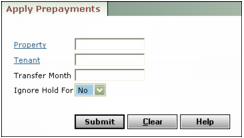
Property Type or select the property code.
Tenant Type or select the resident or tenant code.
Transfer Month Type the month you want the receipt to post, or leave the field empty to post to the current operating month.
Ignore Hold For If you want to respect the Hold for option in the Receipt screen, select No. If you want to override the Hold for option in the Receipt screen and apply payments to any open charge, select Yes.
 |
Charges marked Hold on the Charge screen cannot be paid with this procedure. You must manually remove the hold from all charges to which you want to apply prepays. See “Editing Charges”.
|
|
3
|
Click Submit.
|