|
1
|
From the side menu, select Payables > Review Recurring Payable. The Recurring Payable filter appears.
|
 |
If you are using Voyager Construction and Job Costing, select Payable (JC) > Recurring Payable > Review Recurring Payable. The Construction and Job Costing filter includes additional fields, which are described in this procedure with the designation “Construction only.”
|
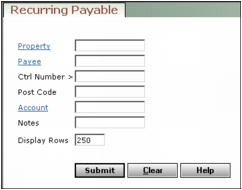
Property Type or select a property code.
Job (Construction only) Type or select a job code.
Payee Type or select a payee code.
Ctrl Number > Type the first payable control number you want to review. Voyager will locate this recurring payable and all recurring payables with higher control numbers.
Post Code Type the post code for the recurring payable.
Account Type or select a G/L account used for a line item on the recurring payable.
Category (Construction only) Type or select a category code.
Notes Type notes from the recurring payable record.
|
3
|
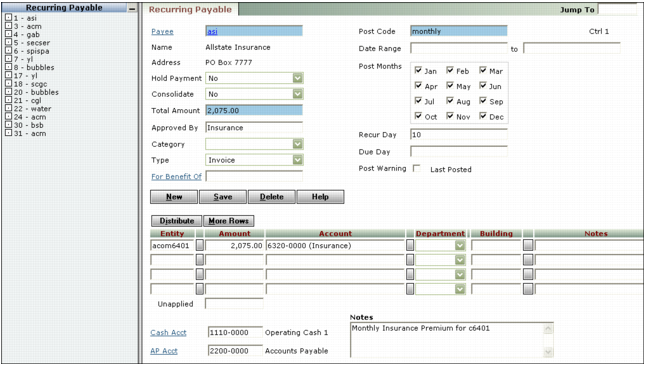
Click Submit. The Recurring Payable screen appears, displaying the first recurring payable matching your selection criteria. A list of all recurring payables matching the filter criteria appears on the left side of the screen in order by control number.
|
|
a
|
Modify the record as appropriate. For detailed information about using the Recurring Payable screen, see “Adding Recurring Payables”.
|
|
6
|
|
a
|
|
b
|
Click OK.
|