|
|
1
|
From the side menu, select Charges > Residential Monthly Posting. The Monthly Posting filter appears.
|
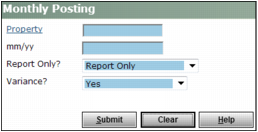
Property Type or select a property, properties, or a property list.
mm/yy Type the month and year the charges are to post.
Report Only Select the way you want to post monthly charges:
 |
Until you are experienced at using Voyager to post lease charges, select Report Only and review the report before posting.
|
Report Only Produces a monthly posting report without creating transactions and posting them to the G/L. Make this selection to review the charges as a report before posting them to the general ledger. For commercial properties, running monthly posting in Report Only mode updates the tenant worksheet.
Create Batch Creates charges in a charge batch and produces the monthly posting report. Make this selection to review the charges as standard charges in a charge batch before posting them to the general ledger. See “Posting a Charge Batch” for information about posting a batch.
|
|
Voyager updates the Monthly Charges Last Posted field in the Property Control screen when you create a monthly posting batch, and the change remains even if you delete the batch.
|
Post to G/L Posts transactions to the G/L and produces the monthly posting report. Make this selection to post the transactions to the G/L without first reviewing the charges and without having to perform a separate posting step.
 |
After posting charges for a property with monthly posting, you cannot perform monthly posting again under Post to G/L mode for that property for that month or any prior month.
|
Variance Select whether to show the monthly posting difference between the current month and the previous month on the Monthly Posting report. Variance is useful if you want to see residents or tenants that appear with a charge for one month but not the other. If you select No, Voyager displays zeros in the Last Month and Variance columns on the Monthly Posting report. Selecting No can increase speed because Voyager does not then calculate variance.
|
3
|
Click Submit. Voyager displays the report.
|
Report Header The report header displays the property (or property list), month and year, report mode (Report Only, Create Batch, or Post to G/L), and variance status (Yes or No).
Exceptions This section displays three categories of exceptions: Previously Posted, No Data For These Properties, and Open Batches. Properties appear under Previously Posted if no new transactions were posted to that property since the last monthly posting was performed. The Comment column displays the month and year through which that property was last processed for monthly posting. Properties appear under No Data For These Properties if no data is available for that property (for example, all lease charges expired for the property, lease charges were pre-dated for an unauthorized post month). Batch headers appear under Open Batches if an open batch exists for that property/month combination.
Property/Resident/Unit Description This column displays the list of properties for which monthly posting was performed. Under each property name, a list of units and tenants associated with that property appears. Units with the Exclude check box selected in the Unit screen do not appear in the list.
Charge Code This column displays the charge codes for the lease charges or posted transactions.
Ctrl# (Batch#) This column displays the transaction and batch control numbers for the posted transactions.
Amount This column displays the transaction amounts posted for the current month.
Last Month This column displays the transaction amounts posted for the last month (exactly one month prior). If you ran monthly posting without calculating variance, this column displays zeros (0.00).
Variance This column displays the difference between the current and last month amounts. If you ran monthly posting without calculating variance, this column displays zeros (0.00).
Comment This column displays four categories of comments: Posted thru mm/yy, Prior Posting, Secured Out, and blank. If the field is blank for a particular property/unit/resident/tenant combination, no charges were posted for that post month. If the field displays Prior Posting, a charge existed before you ran monthly posting. If the field displays Secured Out, you are not authorized to create a transaction for that property/unit/resident/tenant combination. If the field displays Posted thru mm/yy for a particular property, no new transactions were generated for that post month because transactions were already posted through the displayed date.
|
5
|
If you selected Report Only, return to the previous screen to create or post the charges. If you selected Create Batch, you must post the batch. See “Posting a Charge Batch”.
|
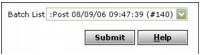
The following graphic shows the Batch Charge filter with a monthly posting batch selected: