|
1
|
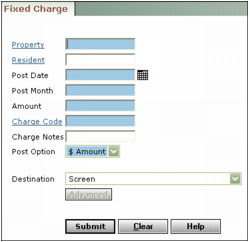
Property Type or select a property, properties, or a property list.
Resident or Tenant Type or select a resident or tenant.
Post Date Type or select the date you want to record the fixed charge (mm/dd/yy).
Amount Type the amount of the charge.
Charge Code Type or select the charge code.
Charge Notes Type a charge description. This note appears on the charge records created when you post the fixed charge.
Post Option Select the way you want to post the charge.
$ Amount Post the charge as a flat monetary amount.
% of rent Post the charge as a percentage of tenant or resident rent. Voyager calculates the charge as a percentage of the amount in the Rent field on the Resident or Lease screen.
Destination Select the report destination. For more information about destinations, see “Report Destinations”.
|
3
|
Click Submit. Voyager posts your fixed charge to a batch and displays the Fixed Charge report.
|
|
4
|
 to print the report.
See “Posting a Charge Batch” for information about posting the fixed charge batch.
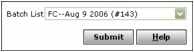
The following graphic shows the Batch Charge filter with a fixed charges batch selected: