You can delete charges from a batch until you post the batch. You can delete a charge from any unposted charge batch through either the detail batch process or the summary batch process. This procedure explains how to delete a charge using the summary batch procedure. For information about deleting charges using the detail batch procedure, see “Deleting Charges”.
|
1
|
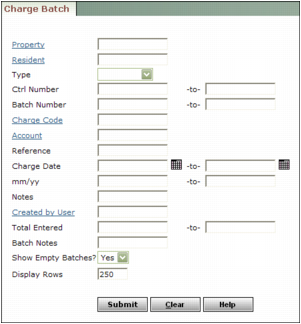
Property Type or select a property code.
Resident Type or select a resident code.
Type Select whether the charge batch is for residents, owners, vendors, or customers.
Ctrl Number Type or select a control number or range of control numbers.
Batch Number Type or select a batch number or range of batch numbers.
Charge Code Type or select a charge code.
Account Type or select a G/L account number.
Reference Type text from the charge Reference field.
Charge Date Type or select a date or range of dates.
mm/yy Type a month or range of months.
Notes Type text from the Remarks field for a line item.
Created by User Type or select a user code.
Total Entered Type an amount or range of amounts.
Batch Notes Type text from the Notes field for the batch.
Show Empty Batches Select whether you want Voyager to display the links for empty batches in the list of batches that match the search criteria.
|
3
|
|
4
|
|
5
|
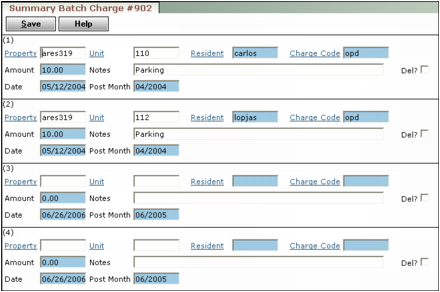
Select the Del check box next to the charge you want to delete.
|

|
6
|