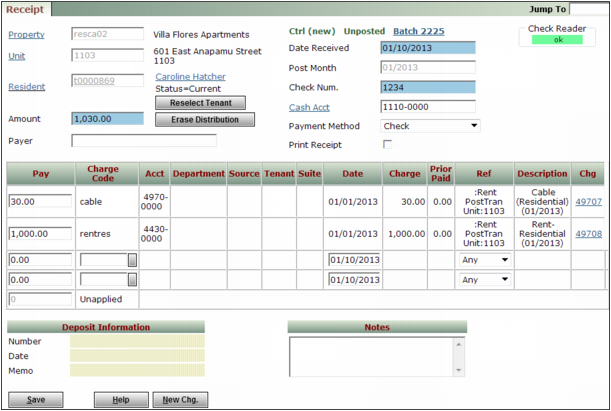
As you enter receipts in a detail receipt batch, you may discover you need to add an additional charge. If you have the Voyager Create Charge from Receipt optional parameter loaded you can enter charges directly from the Receipt screen. For information about installing optional parameters, see the “Updating Databases by Loading Optional Packages and Parameters” in the Voyager Core Installation and Administration Guide.
 |
Charges you enter from the Receipt screen are not posted in a batch. They post directly to the G/L. Once posted, you can review the charges, but you cannot edit them.
|
This procedure assumes you are viewing a Receipt with the Payer field completed, but that has not been saved. See “To create a detail receipt batch” for information about creating a receipt.
|
1
|
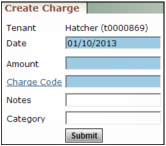
The Create Charge screen appears.
|
2
|
Complete the screen and click Submit. Voyager creates the charge and displays a confirmation message.
|
If you have not yet done so, click Enter Detail to complete the receipt. If you have already completed the receipt detail, use Reselect Resident and then click Enter Detail.