Receipts : Detail Receipt Batch Procedures : Adding Receipts to a Receipt Batch Using Detail Mode

Adding Receipts to a Receipt Batch Using Detail Mode
You can add receipts to a batch until you post the batch. You can add receipts to any receipt batch using the detail mode, whether the batch started as a summary batch or a detail batch.
To use the detail batch process to add receipts to a batch
1
From the side menu, select Receivables > Edit Detail Batch or Payments > Edit Detail Batch. The Batch Receipt filter appears.
2
For field descriptions, see “Receipt Batch Screen Reference”.
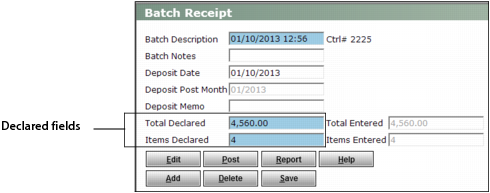
The Batch Receipt screen appears.
3
If necessary, adjust figures in the Declared fields to include the receipt you are about to add.
4
Click Add. A blank Receipt screen appears.
5
Add the receipt and click Save. See “To create a detail receipt batch” for more information about adding a receipt.
Additional Information
Detail Receipt Batch Procedures
Shared Receipt Batch Procedures