Advanced Features : Performance Monitor Report: YSL Classic : Viewing the Performance Monitor Report: YSL Classic

Viewing the Performance Monitor Report: YSL Classic
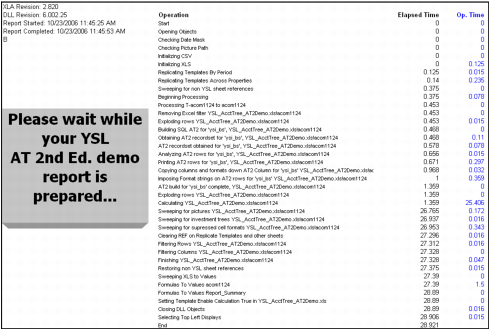
You can use the performance monitor to create a status report after you generate a YSL report. A performance monitor report is helpful when trying to assess the program's efficiency or debug a YSL report.
The following example shows a Performance Monitor report that was generated for a YSL Balance Sheet report, Account Tree 2nd Edition method.
You must enable the performance monitor report option in Excel prior to generating a YSL report.
To enable a performance monitor report: YSL Classic
1
From the Excel top menu, select Tools > Set YSL Options > Filtering tab.
2
On the Filtering tab, select the Performance Monitoring check box.
3
Click OK, then close Excel.
To view a performance monitor report: YSL Classic
1
2
Click the report's Message tab. The Performance Monitor report appears.
