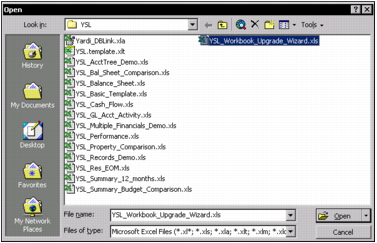
If you have YSL reports that were created with versions of YSL earlier than 2.6, use the Workbook Upgrade Wizard to upgrade these older reports. Your older YSL reports continue to work even if you do not update them, but upgrading older files gives them the expanded capabilities of the standardized YSL Classic.
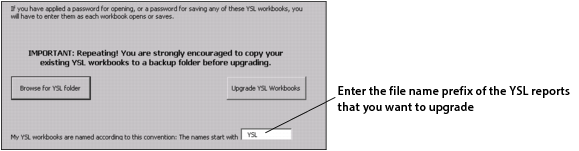
The Workbook Upgrade Wizard selects and upgrades older YSL reports based on a prefix that you enter. For example, all the YSL sample reports begin with the prefix “YSL” (such as YSL_BalanceSheet.xls). If you type YSL in the prefix field, the Workbook Upgrade Wizard locates and upgrades all the YSL reports whose file names begin with “YSL”.
 |
|
2
|
|
4
|
|
5
|
|
6
|
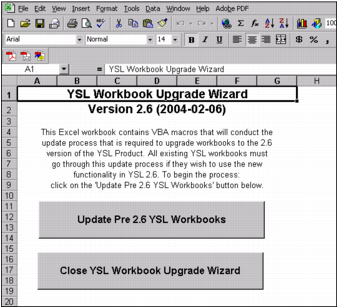
Click Update Pre-2.6 YSL Workbooks. The Yardi Spreadsheet Link -- Help Upgrading Old YSL Workbooks screen appears.
|
|
7
|
In the My YSL workbooks are named according to this convention: The names start with field, type the file name prefix of the YSL reports that you want to upgrade.
|
|
8
|
 |
|
10
|
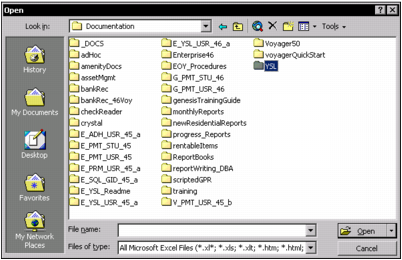
Click Open.
|
|
11
|
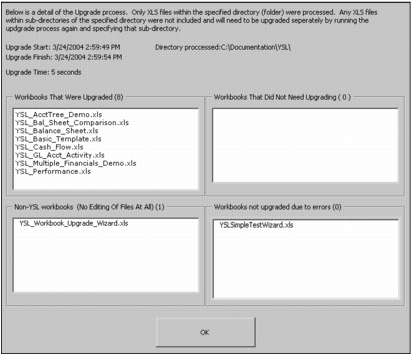
On the Yardi Spreadsheet Link -- Help Upgrading Old YSL Workbooks screen, click Update YSL Workbooks. When the upgrade is complete, a screen appears, listing the YSL reports that were updated.
|
 |
If you create a YSL report with the Create New YSL Workbook function in YSL.Net, and then run it though the Workbook Upgrade Wizard, it will be appear in the “Workbooks not upgraded due to errors” section. For more information, see “Creating YSL Reports”.
|
|
12
|
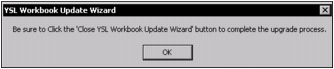
After reviewing the information, click OK. A message appears, reminding you to close the Workbook Upgrade Wizard.
|
|
13
|
Click OK.
|
|
14
|
Click Close YSL Workbook Upgrade Wizard.
|