|
c
|
|
c
|
How calculations are maintained inside Excel: YSL Classic
|
|
c
|
YSL row and column filter parameters: YSL Classic
|
 |
|
|
|
1
|
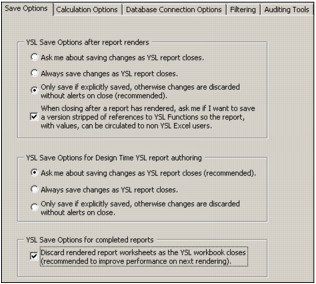
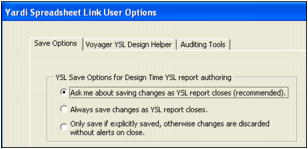
From the Excel top menu, select Tools > Set YSL Options. The Yardi Spreadsheet Link User Options screen appears.
|
|
2
|
|
3
|
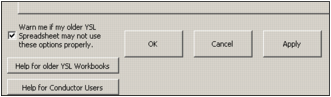
Click Save.
|
 |
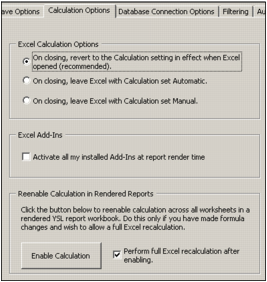
If you have custom add-ins or Excel add-ins (other than Yardi_DBLink.xla) whose functions are included in your YSL report, select the Activate all my installed Add-Ins check box. Some users add customized, encapsulated computations to their Excel add-ins, and selecting this check box includes the results of those computations in YSL reports.
|
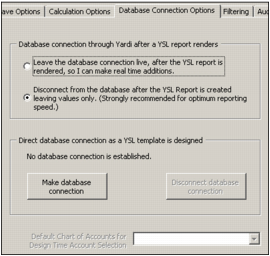
Yardi recommends the following setting. For more information about database connections, see “Connecting to a Database at Design Time: YSL Classic”.
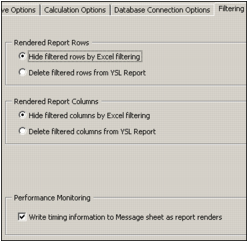
This advanced feature is very useful when debugging a YSL report. It helps you determine which procedures are taking extended periods of time. For more information, see “Viewing the Performance Monitor Report: YSL Classic”.
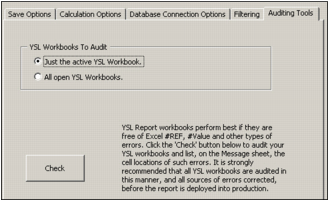
 |
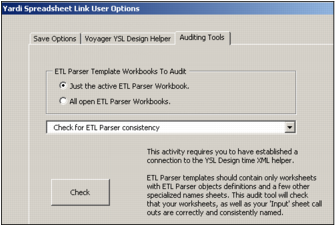
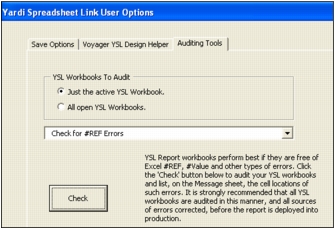
Click the Check button to perform an audit on the reports that you have open. As noted in the caption on the Auditing Tools tab, the purpose of this error locating tool is to minimize the number of errors in a production YSL report. An excessive number of errors (>255) can cause Excel to freeze.
|
|
|
|
1
|
From the Excel top menu, select Add-Ins > Set YSL Options. The Yardi Spreadsheet Link User Options screen appears.
|
|
2
|
Click the Voyager YSL Design Helper tab.
|
|
3
|
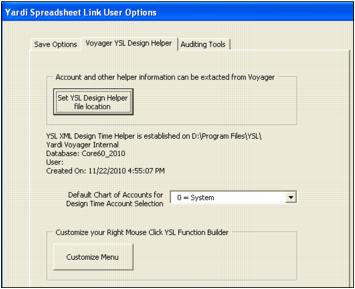
When the YSLDesignHelper.xml file is present, drop-down lists of general ledger (G/L) accounts, performance tables and fields, and other database information make it easier to design a YSL report. This simplifies the design process and limits the possibilities of typographical errors. For more information, see “Downloading YSL Design Helper: YSL.Net” and “Entering YSL Functions”.
Yardi recommends that you click the Set YSL Design Helper file location button, and then select the YSLDesignHelper.xml file on your computer.
To start a specific auditing tool, select it from the drop-down list, and then click Check. YSL tabulates cells that fail the audit procedure on the Message sheet, along with the location of the errors and an advisory message.
The auditing tools that are available in the drop-down list are described in the following sections.
|
|
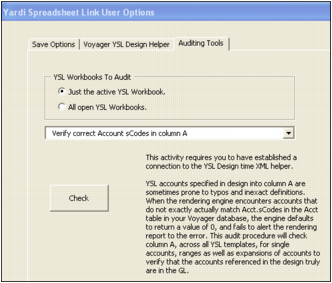
YSL accounts specified in Column A of a YSL report are sometimes prone to typos and inexact definitions. When the report generating engine encounters accounts that do not exactly match the Acct.sCodes in the Acct table in your Voyager database, the engine returns a default value of 0, and fails to alert the rendering report to the error. To avoid this issue, Yardi recommends that you verify account sCodes in Column A prior to generating a YSL report.
The audit procedure checks for inexact matches in Column A across all worksheets within a YSL report, for single accounts, account ranges, and expansions of accounts, to verify that the accounts referenced in the YSL report exist in the general ledger. Cells that fail the audit procedure are tabulated on the Message sheet, along with the location of the errors and an advisory message.
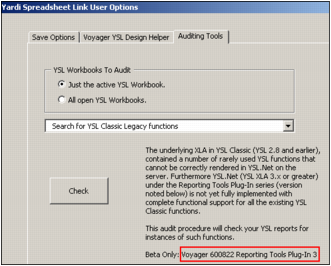
This audit procedure checks your YSL reports for instances of such functions. Cells that fail the audit procedure are tabulated on the Message sheet, along with the location of the errors and an advisory message.
|
|