When you add the YSL.Net add-in, Yardi_DBLink.xla (version 3.x) to Excel, you can keep your organization secure against viruses by confirming that you recognize Yardi Systems as a trusted publisher of the Excel add-in. A trusted publisher is a reputable developer whose code is signed with a digital signature (an encrypted, secure stamp of authentication).
 |
 |
|
1
|
From the Excel top menu, select Tools > Macro > Security > Trusted Publishers.
|
|
1
|
|
2
|
From the side menu, select Trusted Publishers.
|
|
4
|
If you are using Excel 2007 and Developer does not appear in the Excel top menu:
|
|
a
|
 ), then select
 |
b
|
Select the Show Developer Tab in the Ribbon check box.
|
|
c
|
Click OK.
|
|
5
|
If you are using Excel 2010 and Developer does not initially appear in the Excel top menu:
|
|
b
|
|
c
|
From the side menu, click Customize Ribbon.
|
|
d
|
|
e
|
|
f
|
Click OK.
|
|
|
|
b
|
Navigate to HKEY_CURRENT_USER\Software\Microsoft\Office\14.0\Excel\Add-in Manager.
|
|
|
14.0 refers to Excel 2010. You may need to visit other hives within the registry associated with Office 13 or earlier.
|
|
c
|
Select the key whose path\file name ends with Yardi_DBLink.xla, and click Delete. A confirmation request appears.
|
|
d
|
Click OK.
|
|
e
|
Click Close.
|
|
3
|
|
4
|
|
5
|
From the side menu, click Trust Center, then click Trust Center Settings. The Trust Center screen appears.
|
|
6
|
From the side menu, click Add-Ins.
|
|
7
|
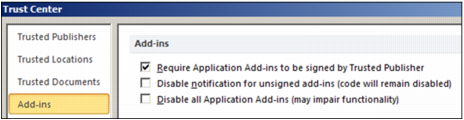
Select the Require Application Add-ins to be signed by Trusted Publisher check box.
|
|
8
|
From the side menu, click Macro Settings.
|
|
9
|
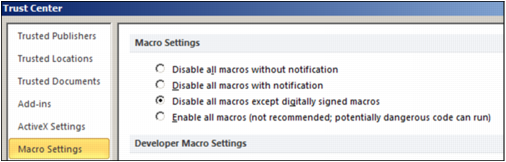
Select the Disable all macros except digitally signed macros check box.
|
|
10
|
Click OK.
|
|
11
|
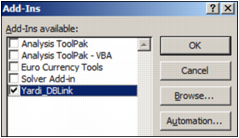
From the side menu, click Add-Ins.
|
|
12
|

|
13
|
|
15
|
|
16
|
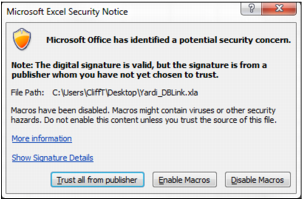
Click Trust all from publisher.
|
 |
|
a
|
|
b
|
|
c
|
From the side menu, click Trust Center, then click Trust Center Settings. The Trust Center screen appears.
|
|
d
|
From the side menu, click Trusted Publishers. The following screen appears.
|
