 |
|
|
|
1
|
From the Excel top menu, click the Add-Ins tab.
|
|
2
|
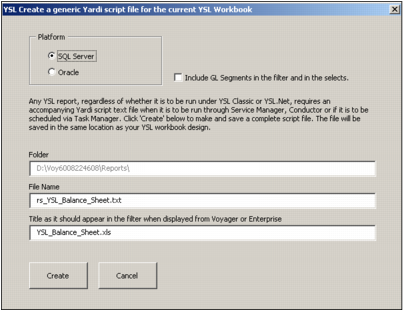
Click Create Matching Script File for Service Manager.
|
|
c
|
If your YSL report employs functions with parameters set to return values broken down by G/L segmentation, select the Include GL Segments in the filter and in the selects box.
|
|
d
|
|
|
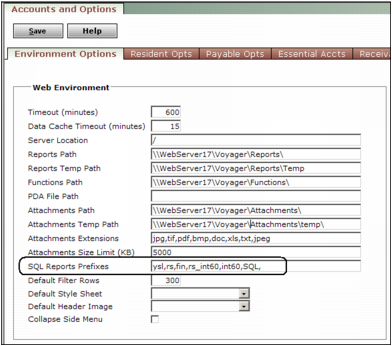
You can modify the script (.txt) file name. The following naming convention should be adopted so that the script file is recognized and exposed from Reports > SQL Reports. For more information, see “Generating YSL Reports in Voyager Service Manager”.
Platform First 3 characters of the file name
Subsequent characters in the file name should match (case insensitive) one of the character sequences that have been defined in the Voyager System Administration > Accounts and Options > SQL Reports Prefixes setup dialog.
 |
|
|
|
1
|
|
2
|
|
3
|
|
4
|
Select a location and a name for the modified YSL report; for example, rs_YSL_Balance02.xls.
|
|
|
|
5
|
Click Save.
|
|
7
|
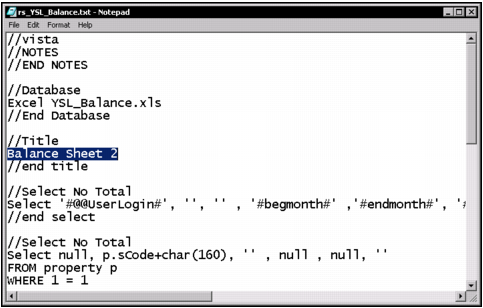
In the //Title section of the script, type a title name (in this example, Balance Sheet 2). This title becomes the label on your YSL report filter and is also passed to cell A1 of your .xls file when you generate the YSL report.
|
|
|
As shown in the preceding graphic, YSL requires that the first item of the first Select statement be the token: '#@@UserLogin#'. If you are authoring a YSL script from scratch, '#@@UserLogin#' must be the first item of the first Select, otherwise the YSL report will not generate.
|
|
8
|
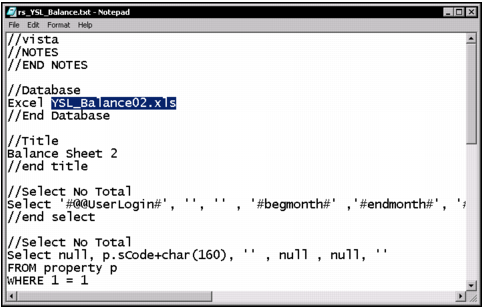
In the //Database section of the script, enter the name of the YSL .xls report that you want the program to reference when the YSL report is generated.
|
|
9
|
|
10
|
Enter a name in the File name field. Each file name should have the prefix rs_ (denoting a SQL report) or ro_ (denoting an Oracle report). For example, rename the script (.txt) file (rs_YSL_Balance02.txt) to correspond with its companion .xls report file.
|
|
11
|
Click Save. After you save the Excel workbook and its corresponding script file, you can generate the YSL report in Enterprise or Voyager. For more information, see “YSL Report Organization in Voyager: YSL.Net”.
|