 |
|
1
|
From the Voyager System Administration side menu, select Dashboard Setup > YSL Maintain Reports. The YSL.Net Setup screen appears.
|
|
|
The URL ../pages/YSLMaintainReports.aspx must exist within a Voyager menu set. If your installation does not include YSL Maintain Reports as a menu option, you must add it to any menu set. For more information, see “Adding Menu Items to Side and Title Menus” in the Voyager Core Installation and Administration Guide.
|
|
2
|
Select the Organize YSL Reports tab.
|
|
3
|
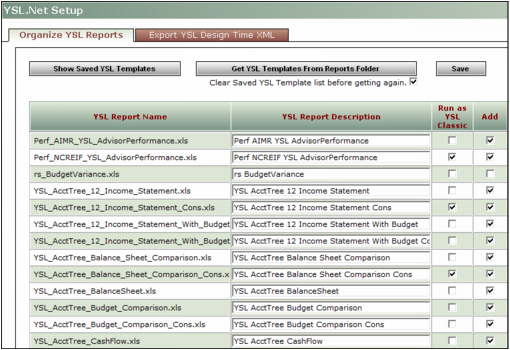
Click Get YSL Templates From Reports Folder. The following graphic appears.
|
|
4
|
If a YSL report has an associated Yardi Script file containing customizations that do not agree with the established conventions of cell locations, check Run as YSL Classic. Otherwise, clear this check box. For more information, see “Using YSL Cell Conventions”.
|
|
|
If you select Run as YSL Classic for any of your YSL reports, the YSL Classic XLA (2.8x or earlier) must be in the reports path directly alongside the YSL .xls file and its associated script file. The presence of the YSL Classic .xla file does not interfere with the rendition of YSL.Net reports since they do not require an .xla file at run time.
|
|
5
|
Click Save.
|