Advanced Features : Format and Graphic Procedures : Inserting Pictures: YSL Classic

Inserting Pictures: YSL Classic
You can reference a picture on a YSL Classic report. At run time, the referenced picture, contained in a folder accessible to your computer, is inserted into the designated cell and appears in the generated YSL report.
YSL supports the following types of pictures: JPEG (*.jpg), bitmap (*.bmp), and TIF (*.tiff). When YSL searches for a referenced picture, it matches the file types in this order: JPG, BMP, and TIF. The first matching file located is the one inserted.
Inserting a picture involves two steps:
1
2
To set a default picture folder: YSL Classic
1
From the Excel top menu, select Tools > Set Default Picture Folder.
2
3
Click Open. A message appears confirming your selected default folder.
To reference a picture: YSL Classic
1
2
3
4
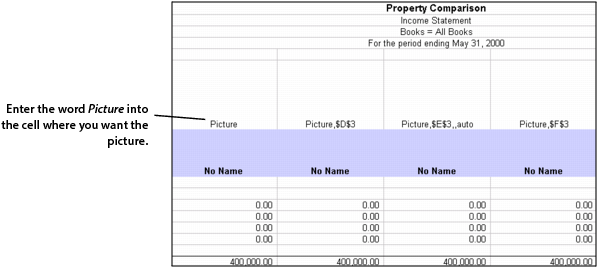
In the cell, enter the word Picture (all seven letters, case insensitive, with no leading characters such as quotes or equal signs).
5
Picture,sCode reference,File path,Scale.
Picture (Required)
Enter all seven characters (case insensitive) into the cell. Note that entering the word Picture in a worksheet cell is the easiest method of inserting a picture into a YSL report.
File Path (Optional)
Enter Def or Default to select the default pictures folder. (If left blank the default folder is assumed.) If the referenced picture is not in the default folder, enter the directory path where the picture is located.
Scale (Optional)
Enter Auto if you want the picture scaled to the exact dimensions of the cell. If left blank, the default of automatic scaling is assumed.
Examples of Inserting Picture Syntax Entries
To size (scale) a picture: YSL Classic
Picture files, such as JPEG or bitmap, come in various resolutions and pixel sizes. The YSL picture reference method gives you flexibility when scaling your inserted graphics.
In most cases, you should use the YSL default automatic scale setting. Automatic scaling is applied to the inserted picture when the Scaling parameter is set to AUTO or automatic (case insensitive), or is left blank. With automatic scaling, the inserted picture is resized to fit the exact dimensions of the referencing cell. Once inserted, you can adjust the cell and/or picture size using Excel formatting options.
In some special cases, you can scale the picture directly against its file size. Enter a number for the Scale parameter that describes the ratio of your displayed picture to the file size. For example, a scale parameter of 2.0 shows a picture at 200% of its size on disk, or a scale parameter of 0.333 shows a picture at one third its normal size.
When the Scale parameter is set to a numeric value, the aspect ratio of the picture is always preserved and appears exactly as it has been saved on disk. The top left corner of the inserted picture matches with the top left corner of the cell containing the picture reference. The picture extends right and downwards from this point to a degree that depends on both the pixel count of the underlying file and your setting of the Scale parameter. Note that certain scale settings could allow a picture to cover and obscure report data in adjacent cells.