 |
|
|
|
|
 |
You must clear the Run as YSL Classic check box if you want the YSL report to generate via the YSL.Net report generating engine.
|
|
2
|
|
|
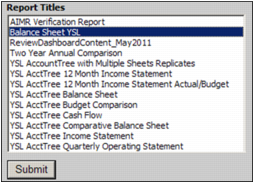
The Report Titles section shows the Yardi scripts that exist in the reports path whose names match the SQL Reports Prefixes established though the setup of Accounts and Options. For more information, see Voyager Accounts and Options in the Yardi Voyager Core Setup Guide.
|
|
3
|
Select a YSL report and click Submit. The associated filter appears.
|
|
5
|
If you set the Destination field to an email distribution, click the Advanced button and ensure that the appropriate email address is set up for the recipient.
|
|
6
|
If you set the Destination field to save to an .xls file, the generated YSL report is available from the Conductor Report Monitor dialog. You can open and review the file in Excel.
|
|
7
|
If you set the Destination field to save to a .pdf file, you can open and review the YSL report after it is generated into an Adobe .pdf file.
|
|
8
|
Click Submit.
|