In YSL, you can enter YSL functions with the Right-Click Function Builder, an intuitive interface that shows all the available YSL functions by category, along with their respective parameter values. For more information about accessing YSL functions, see “To enable macros: YSL.Net”. For more information about each YSL function, see Appendix A, “YSL Function Definitions.”
 |
|
|
|
|
|
1
|
From the Excel top menu, select File > Open.
|
|
|
|
4
|
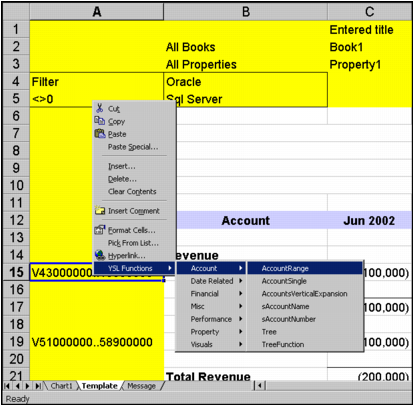
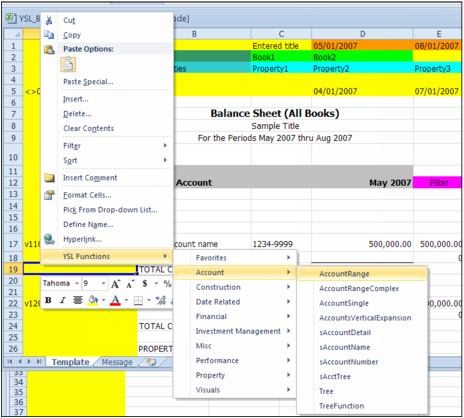
Right-click, then select YSL Functions > Account > Account Range.
|
|
a
|
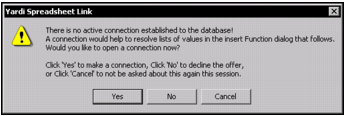
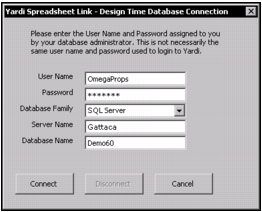
Click Yes to connect to a database. The Yardi Spreadsheet Link Design Time Database Connection screen appears.
|
|
c
|
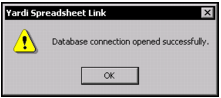
Click Connect. A message appears saying the database connection has been successful.
|
|
d
|
Click OK. The program returns to the YSL report.
|
|
6
|
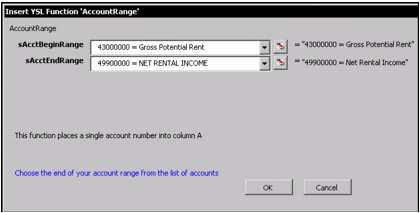
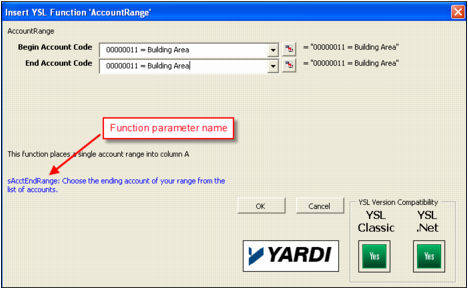
The Insert YSL Function AccountRange screen appears.
|
|
|
If you selected the YSL option Set YSL Design Helper file location, the drop down lists are automatically populated each time you design a YSL report. For more information, see “To set YSL user options: YSL.Net”, and “Downloading YSL Design Helper: YSL.Net”.
|
|
8
|
Click OK. The account range is entered into the cell.
|
|
|
|
1
|
|
2
|
From the side menu, click Open, then locate and select a YSL workbook.
|
|
3
|
Click Open.
|
|
|
|
4
|
From the Excel top menu, select Add-Ins > Set YSL Options. The Yardi Spreadsheet Link User Options screen appears.
|
|
5
|
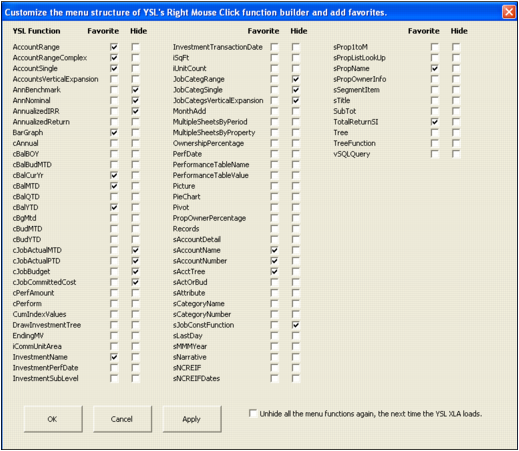
Click the Voyager YSL Design Helper tab, then click the Customize Menu button. The following graphic appears.
|
|
6
|
Click Favorite for each YSL Function that you want to add to a Favorite category in the Right-Click Function Builder menu.
|
|
7
|
|
8
|
Click Apply to save changes and leave the screen open, or click OK to save changes and close the screen.
|
|
|
|
1
|
|
2
|
From the side menu, click Open, then locate and select a YSL report.
|
|
3
|
Click Open.
|
|
|
|
5
|
Right-click, then select All YSL Functions > Account > Account Range.
|
|
7
|
Click OK. The account range is entered into the cell.
|