Creating YSL Reports : Basic YSL Report Writing Procedures : Entering Accounts and Account Ranges

Entering Accounts and Account Ranges
Accounts and account ranges define which G/L accounts are included in your YSL report. There are four variations in the way account codes can be entered into a YSL report cell:
c
c
c
c
You can enter accounts and account ranges either manually or with the Right-Click Function Builder. For information about using the Right-Click Function Builder to enter accounts and account ranges, see “Entering YSL Functions”.
If you choose to enter your account codes manually, note that the code must be entered without including any formatting characters. In the Yardi sample data, account formats appear as XXXX-XXXX, where an X represents a number and the dash (-) character divides the eight characters into two sets. For example, the Rent account is formatted as 4500-0000, but the account number is actually stored in the database as 45000000 (without the separating dash). If you manually enter the Rent account into a cell, you would enter 45000000 (without the separating dash).
Entering a single account
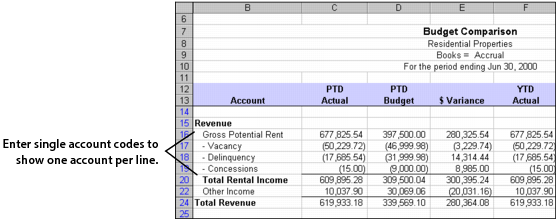
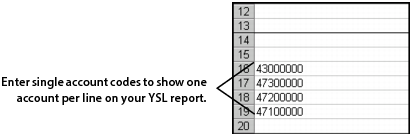
When designing a YSL report, enter a single account code per row if you want that account's information to appear as one line in the YSL report, as shown in the following Budget Comparison YSL report.
When you generate the YSL report, these single account codes appear on the YSL report, as shown in the following graphic.
You may enter multiple, non-contiguous single account codes in one cell of the YSL report if you want the data in these accounts to appear as one value (the sum) and one line. As shown in the previous YSL report, for example, you would enter the account codes 43000000, 47300000, 47200000, and 47100000 in one cell, with a single space between them:
43000000 47300000 47200000 47100000
Entering a range of accounts
Entering a range of accounts allows you to report the sum of an account range as one value on the YSL report. To denote a range of accounts, the account codes must be separated by two periods (..), not a hyphen (-). For example, the account range of 43000000 through 49900000 is entered as 43000000..49900000.
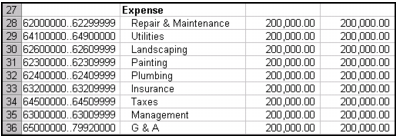
Enter account ranges in your YSL report, as shown in the following graphic.
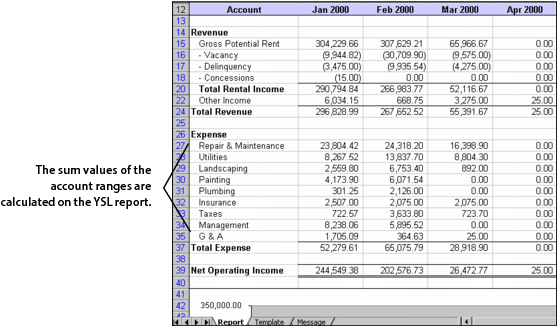
When the YSL report is generated, this range of accounts appears on the YSL report, as shown in the following graphic.
To enter a single account plus a range of accounts: YSL Classic
You have seen how single accounts and a range of accounts are entered into your YSL report. You can also enter a combination of the two. For example, if you wanted the sum value from two single accounts, 43000000 and 51000000, and a range of accounts, 45000000 through 49000000, to appear on a single line, you would enter the account codes as follows:
43000000 45000000..49000000 51000000
To enter a single account plus a range of accounts: YSL.Net
1
2
From the side menu, click Open, then locate and select a YSL workbook.
3
Click Open.
4
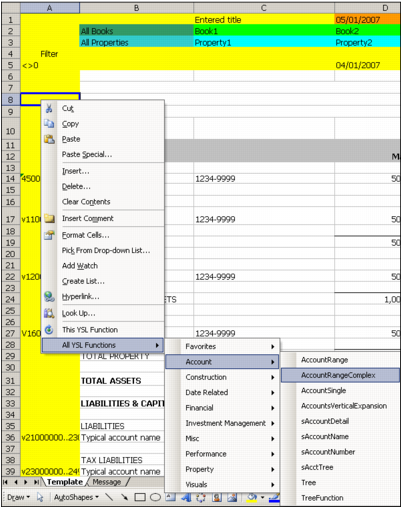
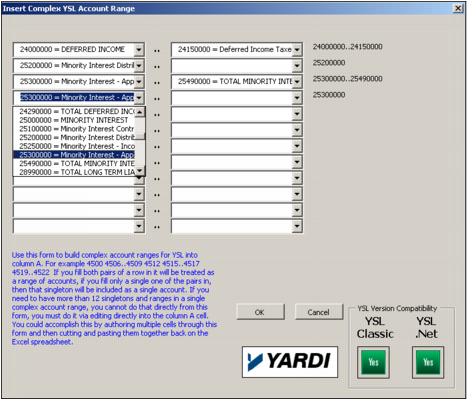
Right-click in any cell, then select All YSL Functions > Account > Account Range Complex.
5
The Insert Complex YSL Account Range screen appears.
6
To use vertical expansion
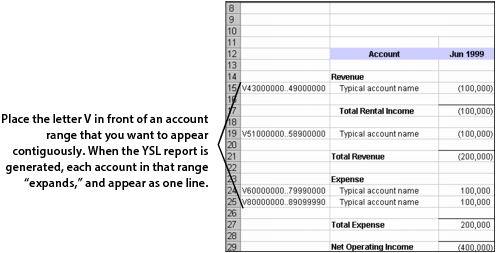
With the vertical expansion option, each account code within a specified range of accounts appears as its own row when the YSL report is generated; the account range “expands” on the YSL report. You denote a vertical expansion account range by placing the letter V (case insensitive) in front of the range of accounts.
The following example illustrates how to enter vertical expansion accounts in a YSL report:
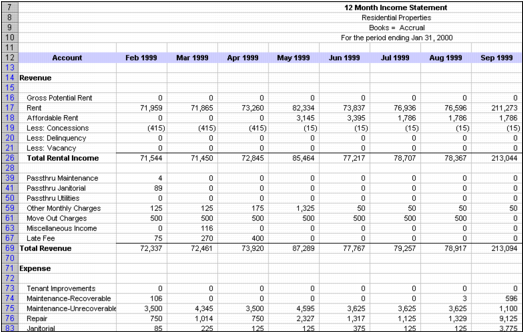
When the YSL report is generated, the vertical expansion accounts appear, as shown in the following graphic.
When using vertical expansion, enter only one range of accounts per cell. For example, the following range of accounts cannot be specified when using vertical expansion:
v10000000..20000000 v30000000..40000000
Instead, you must enter each range, separately, into its own cell.