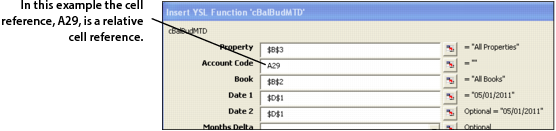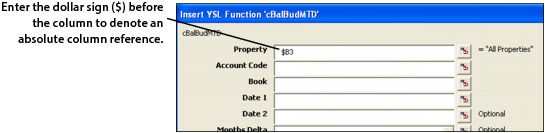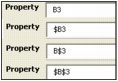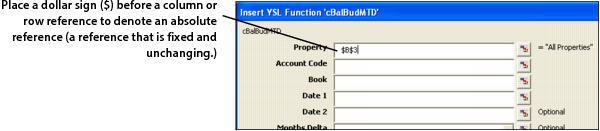
Entering Absolute and Relative Cell References The data you enter into Right-Click Function Builder field can be a literal value or a cell reference. When entering a cell reference, it is important to understand the difference between an absolute cell reference and a relative cell reference. Entering an absolute cell reference Absolute cell references are fixed and unchanging, regardless of how you copy or move the cell contents. When entering data into a Right-Click Function Builder field, you denote an absolute cell reference by placing a dollar sign ($) immediately before the reference as shown in the following graphic. In this example, $B$3 is entered into the Property parameter field, meaning that Column B and Row 3 (the cell reference) never change (they are absolute), regardless of how the data changes. Entering a relative cell reference A relative cell reference might or might not change, depending on the type of data or value that you want to appear. You denote a relative cell reference by NOT placing a dollar sign ($) before the reference. An example of a completely relative cell reference is A29. If you enter A29 as a reference, it means that the value of the column, A, and that of the row, 29, may or may not change, depending on the data and what type of value you want to appear on your YSL report. Entering a mixed cell reference A mixed cell reference is both absolute and relative. In the following example, the cell reference, $B3, is a mixed reference. Entering $B3 means that reference Column B never changes (it is absolute), but reference Row 3 may or may not change (it is relative). Cell Reference Summary Table Absolute vs. Relative Cell References Example: Denotes: $C$3 C is absolute; 3 is absolute. $C3 C is absolute; B is relative. C$3 C is relative; B is absolute. C3 C is relative; B is relative. You can toggle (switch) between absolute ($) and relative cell references (as shown in the following graphic) by repeatedly pressing F4 on your keyboard.