If your operating system is Microsoft Windows 98, you must activate YSL once for each workstation where Excel is installed. Activating YSL means adding Yardi_DBLink.xla as an Excel add-in.
If, after you activate either YSL Classic or YSL.Net, the message “Security Warning: Macros have been disabled” appears at the top of the Excel screen, Excel macros are disabled and YSL functions will not be available when you right-click in a cell. You must enable Excel macros to make the YSL functions available. For more information, see “To enable macros: YSL.Net”.
 |
|
1
|
|
2
|
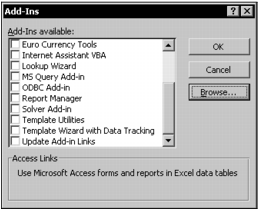
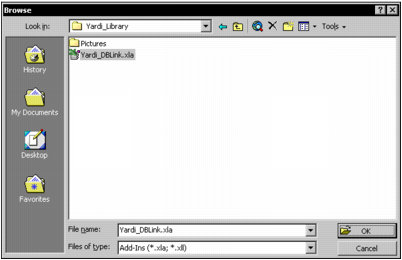
Click Browse and locate the Yardi_DBLink.xla file.
|
|
|
|
3
|
|
4
|
|
5
|
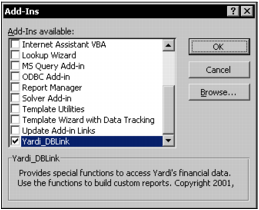
Select the Yardi_DBLink check box.
|
|
6
|
Click OK.
|
|
|
|
1
|
|
2
|
|
3
|
From the side menu, click Add-Ins.
|
|
4
|

|
5
|
|
6
|
|
7
|
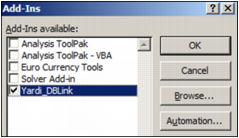
If Yardi_DBLink does not appear in the list:
|
|
a
|
Click Browse and locate the Yardi_DBLink.xla file.
|
|
|
|
b
|
|
d
|
Select the Yardi_DBLink check box.
|
|
8
|
|
9
|
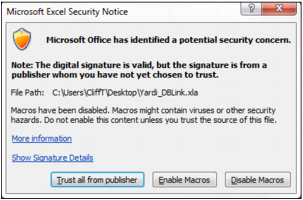
Click Trust all from publisher.
|
 |
 |
|
a
|
|
b
|
|
c
|
From the side menu, click Trust Center, then click Trust Center Settings. The Trust Center screen appears.
|
|
d
|
From the side menu, click Trusted Publishers. The following screen appears.
|

|
|
|
1
|
|
2
|
|
3
|
From the side menu, click Trust Center.
|
|
4
|
|
5
|
From the side menu, click Macro Settings. Select the appropriate setting. Yardi recommends that you select Disable all macros except digitally signed macros.
|
|
6
|
Click OK.
|