Some report filters include a Destination drop-down list, accompanied by an Advanced button that is available only when there are advanced options for the selected destination type.
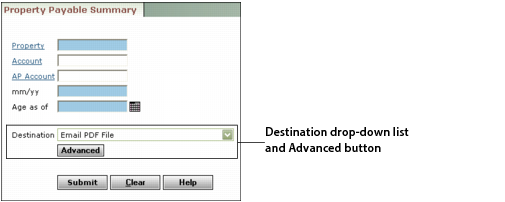
Yardi Conductor is required for Excel and PDF reports. See the Conductor Setup and Administration Guide for information about installing and using Conductor.
Screen Select this option to display the report on the screen. You can print the displayed report after Voyager displays it.
Screen (optimized for portrait) Select this option to display the report on the screen, optimized for printing in portrait (vertical) orientation. You can print the displayed report after Voyager displays it.
Screen (optimized for landscape) Select this option to display the report on the screen, optimized for printing in landscape (horizontal) orientation. You can print the displayed report after Voyager displays it.
Download CSV File Select this option to save the report as a comma-separated file that can be read in Microsoft Excel. For more information, see “To save a report in CSV format”.
E-mail XLS File Select this option to e-mail the report as an attachment in Microsoft Excel format. This option requires Yardi Conductor. You must complete the Advanced Options dialog box. For more information, see “To generate and e-mail a report”.
E-mail PDF File Select this option to e-mail the report as a PDF file attachment for viewing in Adobe Reader or an Adobe Acrobat product. This option requires Yardi Conductor. You must complete the Advanced Options dialog box. For more information, see “To generate and e-mail a report”.
Save to XLS File Select this option to save the report in Microsoft Excel format. This option requires Yardi Conductor. You can complete the Advanced Options dialog box to specify how the file is generated. For more information, see “To generate a report and save it to the Conductor report server”.
Save to PDF File Select this option to save the report as a PDF file for viewing in Adobe Reader or an Adobe Acrobat product. This option requires Yardi Conductor. You can complete the Advanced Options dialog box to specify how the file is generated. For more information, see “To generate a report and save it to the Conductor report server”.
|
1
|
Select Reports > Report Category > Report Title. The report filter appears.
|
|
3
|
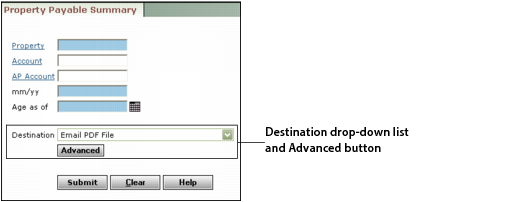
In the Destination drop-down list, select one of the e-mail options (Email PDF File or Email XLS File). The Advanced Options dialog box appears. (If the dialog box does not appear, click Advanced.)
|
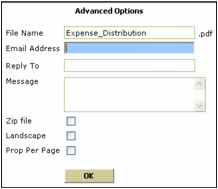
File Name Voyager automatically adds the name of the report. You can change the name by typing over it. Voyager automatically adds the file extension (.xls or .pdf).
E-mail Address Type the recipient's e-mail address.
Reply To Type the address for reply e-mail.
Message Type text for the body of the e-mail.
Zip file Select this check box to send the report compressed in Zip format.
Landscape Select this check box if you want to orient the report horizontally. By default, reports are oriented vertically.
Prop Per Page Select this check box if you do not want data for more than one property on the same page.
|
5
|
|
6
|
Click Submit. Voyager sends the report to Conductor Report Manager for processing and the Conductor Report Monitor screen appears. See “To monitor the progress of reports sent to Conductor” and the Conductor Setup and Administration Guide for additional information.
|