|
1
|
From the side menu, select Document Manager > Create Image Batch. The Document Manager filter appears.
|
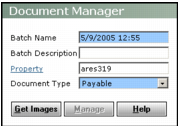
Batch Name Accept the default or type a new name.
Batch Description Type a description.
Property Type or select the code for the property to which you want to assign the image batch. Voyager uploads images to the corresponding property folder in the Reports Temp Path specified in the Accounts & Options screen.
Document Type Select the type of record the documents in the batch are associated with.
|
3
|
|
4
|
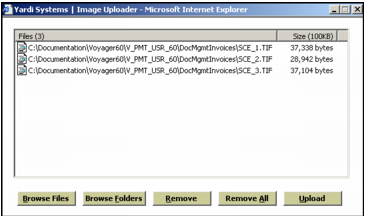
Click Browse Files to select images individually, or click Browse Folders to select images by folder. Use standard Windows procedures for locating and selecting files.
|
|
5
|
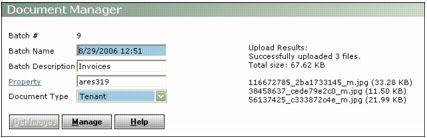
Click Upload. Voyager copies the files to a temporary folder and displays a status bar showing the progress of the upload. Upon completion, the Document Manager screen appears, displaying the results of the upload and the batch control number.
|