|
1
|
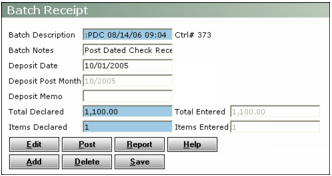
Delete the receipt batch created by applying the postdated cheques. The Batch Description begins with :PDC. Make a note of the control number of the batch. See “Deleting a Receipt Batch”.
|
 |
For the control number, see the Ctrl # to the right of the Batch Description field in the Batch Receipt and Summary Batch Receipt screens.
|
|
2
|
From the side menu, select Receivable > Postdated Cheques > Unapply Posted Dated Cheques. The Unapply Post Dated Cheques screen appears.
|
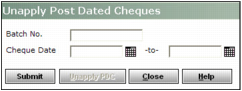
Batch No. Type the control number of the batch you deleted
Cheque Date Type or select the earliest and latest dates for the cheques in the deleted batch.
|
|
If you did not make a note of the batch number before deleting it, you can use the Cheque Date fields to find the postdated cheque record in the deleted batch.
|
|
4
|
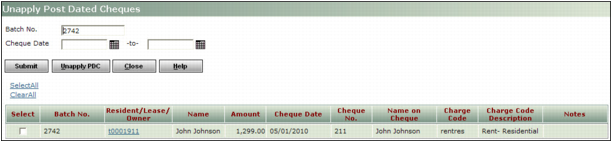
Click Submit. A table appears below the filter showing all postdated cheque records in a deleted batch.
|
|
5
|
To select the PDC record to be unapplied, select the Select check box.
|
|
6
|
To unapply the postdated cheques selection, click Unapply PDC. The postdated cheque records are unmarked as applied.
|