|
1
|
Select Reports > Report Category > Report Title. The report filter appears.
|
|
3
|
|
4
|
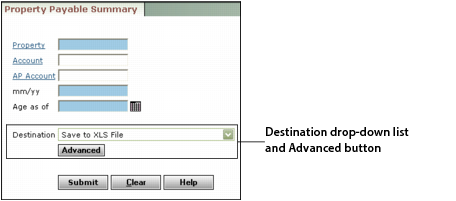
If you want to specify how the report is generated, click Advanced. The Advanced Options dialog box appears.
|
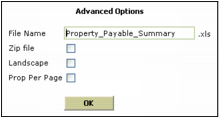
File Name Voyager automatically adds the name of the report. You can change the name by typing over it. You do not need to include the file extension; Voyager automatically adds .xls or .pdf as appropriate.
Zip file Select this check box to compress the report and save it in a Zip file.
Landscape Select this check box if you want to orient the report horizontally. By default, reports are oriented vertically.
Prop Per Page Select this check box if you do not want data for more than one property on the same page.
|
6
|
Click OK.
|
|
7
|
Click Submit. Voyager sends the report to Conductor Report Manager for processing and the Conductor Report Monitor screen appears. See “To monitor the progress of reports sent to Conductor” and the Conductor Setup and Administration Guide for additional information.
|
|
1
|
Select Reports > Report Category > Report Title. The report filter appears.
|
|
3
|
|
4
|
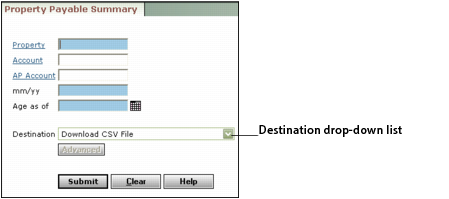
Click Submit. Windows displays a File Download dialog box from which you can follow standard Windows procedures for saving the file.
|