This section describes how to set up Voyager to use the Pay Commission feature. For a description of the Pay Commission feature and a comparison with the Management Fees feature, see “Property-Management Fees Overview”.
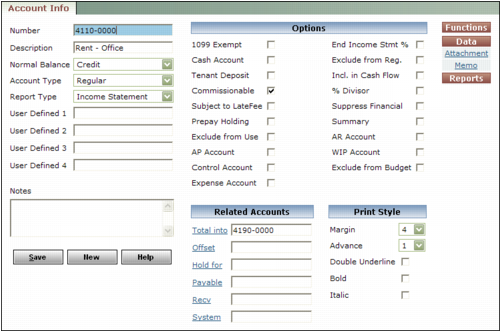
The Pay Commission feature pays the percentage specified in the Ownership screen for all G/L accounts for which the Commissionable check box is selected.
 |
|
1
|
|
2
|
|
3
|
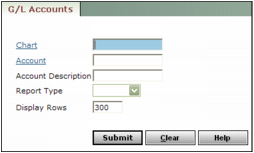
Click Submit. The Account Info screen appears. For more information, see “Adding, Reviewing, and Editing Individual G/L Accounts” in the Voyager Core Setup Guide.
|
|
4
|
|
5
|
Click Save.
|
|
1
|
|
2
|
|
3
|
|
4
|
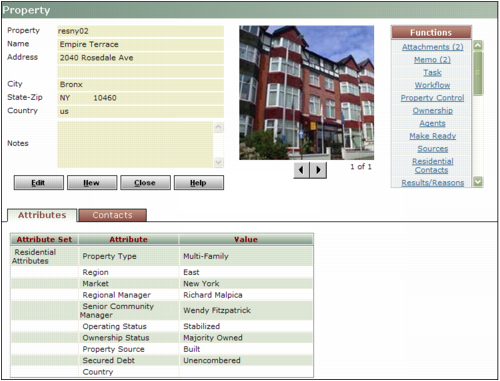
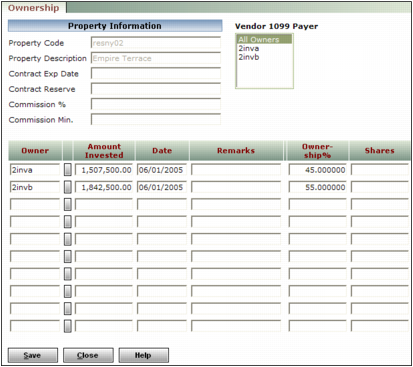
On the Functions menu, click Ownership. The Ownership screen appears. For more information, see “Adding Owner Records” in the Voyager Core Setup Guide.
|
|
5
|
In the Commission % field, type the commission that the property-management organization receives. Voyager will process commissions at this percentage for all commissionable G/L accounts.
|
 |
|
6
|
|
7
|
Click Save.
|