This section describes how to set up Voyager to use the Management Fees feature. For a description of the Management Fees feature and a comparison with the Pay Commission feature, see “Property-Management Fees Overview”.
|
l
|
Create a fee pool, specifying the G/L accounts and percentages for management-fee calculations
|
|
l
|
Create a property fee pool, associating one or more fee pools with a property and optionally adding G/L segment information
|
If you are using G/L account segments, you can add segment information to property fee pools. You can use G/L segments for both management-fee calculations and the transactions used to pay management fees (payable invoice, payable adjustment or journal entry). Voyager honors G/L segment validation rules when you use segments with management fees. For more information about using G/L segments, see “G/L Segments” in the Voyager Core Setup Guide.
|
1
|
From the side menu, select Payables > Management Fees > Fee Pools > Add Fee Pool. The Fee Pool screen appears.
|
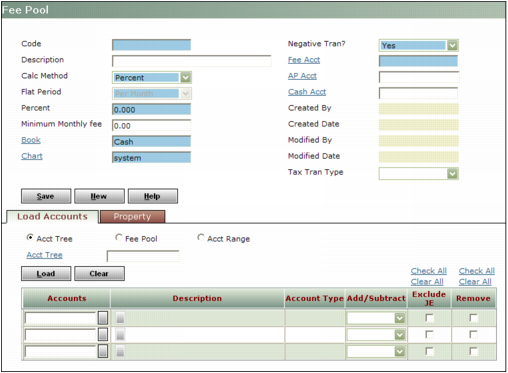
Code Type a unique code. You will use the code to associate the fee pool with a property.
Description Type the description that will appear as a note on invoices created using this fee pool. If you consolidate fees from multiple pools on a single invoice, this text appears in the Notes field of the associated line item. If you do not consolidate, the description appears in the Notes field for the entire invoice.
Calc Method Select Percent if you want to pay a percentage of transactions associated with the G/L accounts specified on the Load Accounts tab. Select Flat Rate if you want to pay a set amount.
Flat Period Select Per Month if you want to pay a flat rate per month. Select Calculation if you want to pay a flat rate per calculation. If the Calc Method is Percent, this field is not available.
Percent Type the management fee percentage of transactions associated with the G/L accounts specified on the Load Accounts tab. If the Calc Method is Flat Rate, this field is not available.
 |
Flat Rate Type the management fee amount. If the Calc Method is Percent, this field is not available.
Minimum Monthly Fee If the management organization should receive a minimum fee each month, type the amount.
Book Select the accounting book (cash, accrual, or user-defined) containing the transactions that you want to base commissions on.
Chart Select the chart of accounts. This field appears only if your system is configured for multiple charts of accounts.
Negative Tran Select Yes if you want Voyager to create a credit invoice if the calculated amount of fees is a negative amount. Otherwise, select No.
Fee Acct Type or select the number for the G/L account for management fee payments or credits.
A/P Acct Type or select the number for the G/L accounts-payable account.
 |
|
Cash Acct Type or select the number for the G/L account for management fee payments or credits.
|
|
|
Tax Tran Type If you are using Voyager International and you want taxes to be calculated on management fees, select the tax transaction type. For more information, see the section on tax transaction types in the Voyager International User's Guide. If you are not using Voyager International, this field has no effect.
|
a
|
Select the appropriate option on the Load Accounts tab:
|
|
|
Acct Tree Select this option if you want Voyager to populate the account table with accounts from a particular account tree. If you select this option, an Acct Tree field appears. Type or select the code for the appropriate account tree. For more information about account trees, see “Account Trees” in the Voyager Core Setup Guide.
Fee Pool Select this option if you want Voyager to populate the account table with all of the accounts used for another fee pool. If you select this option, an Existing Fee Pool field appears. Type or select the code for the appropriate fee pool.
Acct Range Select this option if you want Voyager to populate the account table with a range from your chart of accounts. If you select this option, From Acct and To Acct fields appear. Type or select the numbers for the first and last accounts in the range.
|
b
|
Click Load. Voyager populates the account table with accounts from the source that you specified.
|
|
a
|
Click the button to the right of the Account field in an empty row. The Account lookup list appears.
|
|
c
|
Click OK.
|
|
|
If you are using G/L segments, you can specify which ones to use on the Property Fee Pool screen. See “To create a property fee pool”.
|
|
5
|
Select the appropriate Add/Subtract option. By default, income accounts use Add, expense account use Subtract, and balance-sheet accounts are blank. You can override the default.
|
Add Transaction data increases the commission. This option is typically used for income accounts, but it can also be used to pay commission on expense accounts or cash accounts.
Subtract Transaction data decreases the commission. You can use this feature to subtract expenses that are included in lease charges but for which you are not entitled to a commission. For example, if the rent lease charge includes telephone service, but you are not paid a commission on telephone service, you would subtract the telephone expense. If you use a separate lease charge for telephone service, you can leave that lease charge out of the commission calculation, in which case you would not have to subtract the expense.
Blank Transactions do not affect the commission.
|
6
|
Select the Remove check box for each account that you do not want to include in management-fee calculations. Voyager will remove these rows when you click Save.
|
|
7
|
Select the Exclude JE check box for each account for which you do not want to include journal entries in management-fee calculations.
|
|
8
|
Click Save.
|
|
|
|
1
|
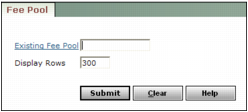
From the side menu, select Payables > Management Fees > Fee Pools > Review Fee Pools. The Fee Pool filter appears.
|
|
2
|
In the Existing Fee Pool field, type or select the code for the fee pool that you want to review.
|
|
3
|
|
4
|
|
5
|
|
1
|
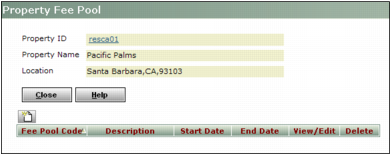
From the side menu, select Payables > Management Fees > Fee Pools > Property Fee Pool. The Property Fee Pool filter appears.
|
|
2
|
In the Property field, type or select the code for the property.
|
|
3
|
|
4
|
 . The
. The 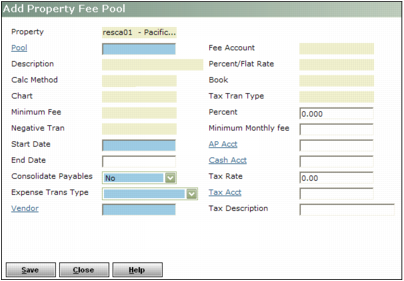
|
5
|
In the Pool field, type or select the code for the pool. When you tab out of this field, Voyager updates the screen with data from the specified pool. For information about the fields in the Fee Pool screen, see “To create a fee pool”
|
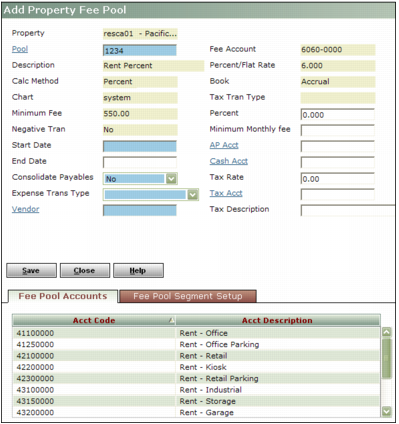
Start Date Type the first month that the pool will apply to this property.
End Date If you want to specify the end date, type the last month that the fee pool will apply to the property.
 |
Consolidate Payables If you want management fees based on this fee pool to have their own payable, select No. If you want management fees based on this fee pool to be combined with management fees based on other fee pools, select Yes.
Expense Trans Type Select how you pay management fees:
Payable Invoice Voyager will create a payable invoice.
Payable Adjustment Voyager will create a payable adjustment.
Journal Entry Voyager will create a journal entry. If you select this option, the Book and Offset Account fields appear. You must specify the G/L book and offset account.
|
|
|
|
|
Vendor Type or select the vendor code for the property manager.
Percent If you want to override the percentage specified in the fee pool, type the amount. For information about the Percent fields in the Fee Pool screen, see “To create a fee pool”.
Minimum Monthly Fee If you want to override the minimum monthly fee specified in the fee pool, type the amount.
AP Acct/Cash Acct If you want to override the A/P account and cash account specified in the fee pool, type or select the account number. For more information, see “To create a fee pool”.
 |
These fields do not affect Voyager International, which uses transaction types to tax management fees. For more information, see the Voyager International User's Guide.
|
Tax Rate Type the tax rate for management fees.
Tax Account Type or select the G/L account number for the tax on management fees.
Tax Description Type a description of the tax.
|
8
|
|
|
|
a
|
On the Property Fee Pool screen, click the View/Edit button for the fee pool. The Edit Property Fee Pool screen appears.
|
|
b
|
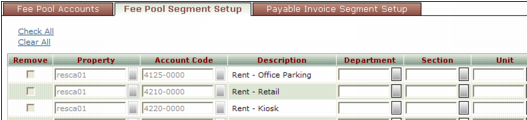
Click the Fee Pool Segment Setup tab.
|
|
|
Only manually added rows can be deleted using the Remove check box.
|
|
d
|
Click Save.
|
|
a
|
On the Property Fee Pool screen, click the View/Edit button for the fee pool. The Edit Property Fee Pool screen appears.
|
|
|
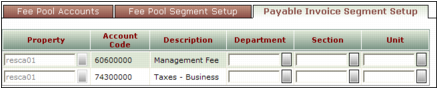
The Expense Trans Type on the Property Fee Pool screen determines the name of the tab: Payable Invoice Segment Setup, Payable Adjustment Segment Setup, or Journal Entry Segment Setup.
|
A table appears, showing the management-fees G/L account specified on the Add Property Fee Pool screen. If a tax account was specified, it also appears. The following graphic shows three segments: Department, Section, and Unit.
|
d
|
Click Save.
|
|
1
|
From the side menu, select Payables > Management Fees > Fee Pools > Property Fee Pool. The Property Fee Pool filter appears.
|
|
2
|
In the Property field, type or select the code for the property.
|
|
3
|
|
4
|
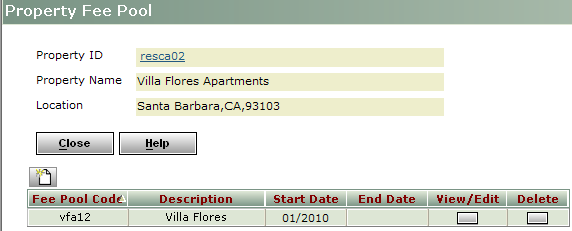
Click the View/Edit button for the property fee pool you want to edit. The Edit Property Fee Pool screen appears.
|
|
5
|
Make desired changes. For information about the fields on the Edit Property Fee Pool screen, see “To create a property fee pool”.
|
|
|
The Edit Property Fee Pool and Add Property Fee Pool screens are identical except for some fields cannot be modified on the Edit Property Fee Pool screen.
|
|
6
|
Click Save.
|
|
1
|
From the side menu, select Payables > Management Fees > Fee Pools > Copy Fee Pool. The Fee Pool filter appears.
|
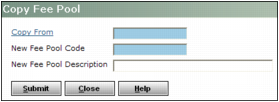
Copy From Type or select the existing fee pool from which you want to copy information.
New Fee Pool Code Type a unique code for the new fee pool.
New Fee Pool Description Type the description that will appear as a note on invoices created using the new feel pool.
|
3
|
Click Submit. The Fee Pool screen appears showing the new fee pool. Voyager copies the information from the source fee pool to the new fee pool.
|
|
5
|
Click Save.
|