|
1
|
From the side menu, select Receivables > Review Receipt or Payments > Review Receipt. The Receipt filter appears. The graphic shows a completed filter.
|
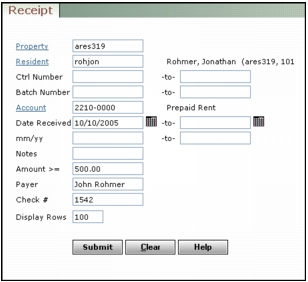
Property Type or select a property, properties, or a property list.
Resident Type or select a resident lease code.
Ctrl Number Type a range of transaction control numbers. Enter the same control number in both fields to locate one receipt.
Batch Number Type a range of batch numbers. Enter the same batch number in both fields to locate receipts from one batch.
Account Type a G/L account number used for the receipt.
Date Received Type or select the range of dates in which the receipts were recorded. Enter the same date in both fields to locate receipts from one day.
mm/yy Type a range of post months. Enter the same month/year in both fields to locate receipts for one post month.
Amount Type a minimum monetary amount.
Payer To locate a receipt for a non-occupant payer, type the name of the payer.
Check # Type the check number.
|
3
|
Click Submit. The Receipt screen appears with the first receipt in the main part and a list of receipts in the navigation list.
|
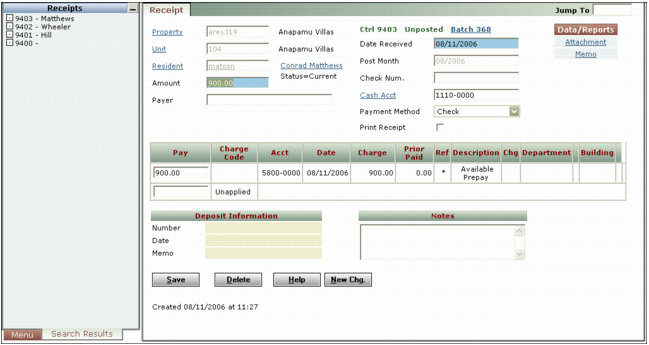
The Chg field in the spreadsheet displays each charge number the receipt has paid. Charge numbers are displayed as links. You can click a link to view the charge.
For a receipt that uses a prepay or records a prepay used by another receipt, the Description field in the spreadsheet displays the corresponding receipt. For receipts using prepays, the Notes field at the bottom of the screen documents the prepay transfer. For more information about prepays, see “Prepays”.