Use the Charge filter to locate charges from posted batches and individual charges entered offline. If the charge is unpaid, you can cancel the hold status and apply prepays. For more information about prepays, see “Prepays”.
|
1
|
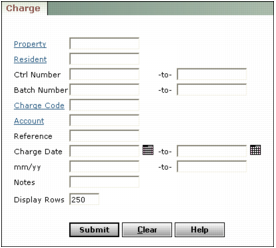
Property Type or select a property code.
Resident Type or select a resident or tenant code.
Ctrl Number Type a range of charge control numbers. Control numbers are generated when you save a charge in a batch. Control numbers appear in the top right of the Charge screen when you are viewing a charge record.
Batch Number Type a range of batch numbers.
Charge Code Type or select the charge code.
Account Type or select the G/L account number.
Reference Type text from the Reference field. Use the percent sign (%) as a wildcard.
Charge Date Type or select a range of recording dates.
mm/yy Type a range of post months (mm/yy).
Notes Type text from the Notes field.
|
3
|
|
5
|
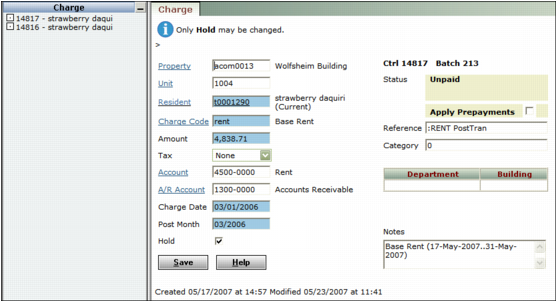
Review your charge record. If the charge is paid, Voyager lists the receipts that paid the charge at the bottom of the screen. Receipt numbers appear as links. Click the Rec link to view the record for that receipt.
|
|
6
|
If the Hold check box is selected, you can clear it to remove the hold.
|
|
7
|
If the charge is unpaid and you want to apply an available prepay, click the Apply prepayments option. For more information about applying prepays, see “Applying Prepays through the Charge Screen”.
|
|
8
|