You can automatically reverse a journal entry by selecting the Reverse next month check box in the Journal Entry screen when you create the journal entry. If that box is selected, Voyager creates the journal entry and the reversing journal entry at the same time. See “Creating Journal Entry Batches” for information about creating a journal entry.
You can use the Reverse Journals feature to reverse journal entries. See “To reverse journal entries” for instructions.
Or you can manually create reversing journal entries. See “Creating Journal Entry Batches” for information about creating a journal entry.
|
1
|
 |
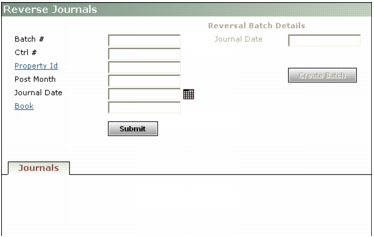
If you are using Voyager Construction and Job Costing, select G/L (JC) > Reverse Job Cost Journals. The Construction and Job Costing Journal Entry screen includes additional fields.
|
|
3
|
|
4
|
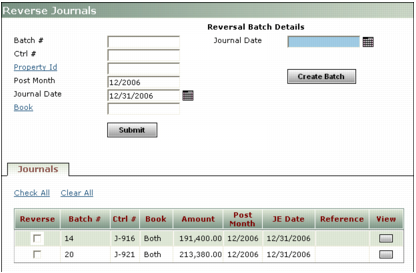
If you want to view a journal entry, click a View button. The Journal Entry screen appears. For more information about the Journal Entry screen, see “Creating Journal Entry Batches”. When you are through viewing the batch, close the Journal Entry screen.
|
|
6
|
Type the date for the reversing journal entry in the Journal Date field.
|
|
7
|