You can record a receipt as NSF (not sufficient funds) until you have reconciled the deposit. An NSF button appears on the Receipt screen for receipts that can be recorded as NSF.
When you NSF a receipt, Voyager enters a new receipt with negative amounts to back out the original receipt. For each NSF receipt and the receipt entered to NSF it, Voyager references the control number of the related receipt in the Notes field. (NSF) appears next to the control number of both receipts.
|
1
|
In the Receipt screen for the receipt you want to record as NSF, click the NSF button. The NSF Receipt screen appears.
|
 |
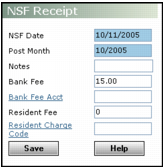
NSF Date Type the date you want to record the receipt as NSF (mm/dd/yy).
Post Month Type the month the NSF affects the general ledger (mm/yy).
Bank Fee Type the amount the bank charges you for NSF transactions. Voyager will create a journal entry for this amount and the expense will go against the bank fee account.
Bank Fee Acct Type or select the expense account you use for paying bank fees.
Resident Fee Type the amount you charge the payer for the NSF. Voyager creates a charge batch for this amount when you save this transaction. The name of the charge batch begins with :NSF. For information about posting the charge batch, see “Posting a Charge Batch”.
Resident Charge Type Select the charge code for the NSF transaction.
|
3
|
|
4
|
Click OK.
|