 |
For information about reclassing expense accounts in Voyager Construction and Job Costing, see “Reclassing Job Cost Information on Posted Payables” in the Voyager Construction and Job Costing User's Guide.
|
|
1
|
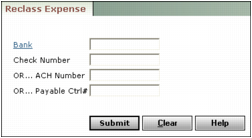
Bank Type or select the bank account from which the expense was paid. Leave this field blank if you are entering a control number in the Payable Ctrl# field.
Check Number Type a check number.
Or...ACH Number Type the ACH number.
Or...Payable Ctrl# Type the control number for the check or EFT payment.
|
|
The term ACH (Automated Clearing House) is sometimes used interchangeably with EFT (Electronic Funds Transfer) in Voyager. For more information about using EFT, see the Voyager Electronic Banking User's Guide.
|
|
3
|
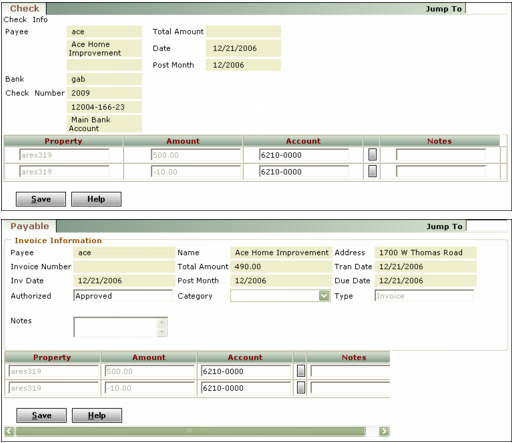
Click Submit. Depending on which fields you completed in the filter, the Check or Payable screen appears.
|
|
4
|
|
5
|
Click Save.
|