This section describes how to use the Management Fees feature to pay management fees. You can also use the Pay Commission feature to pay management fees. For information and the differences between the two features, see “Property-Management Fees Overview”.
You set up management fees by creating fee pools and associating those pools with properties. For more information, see “Setting Up Management Fees”. When you process management fees, Voyager pays the percentages and flat amounts specified in the fee pools associated with each property.
 |
|
1
|
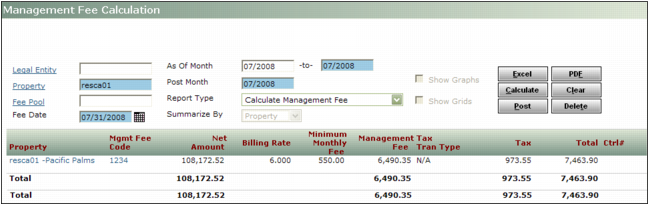
From the side menu, select Payables > Management Fees > Management Fee Calculations. The Management Fee Calculation screen appears.
|

Legal Entity If you are using Voyager International, type or select the code for the legal entity. If you are not using Voyager International, leave this field empty.
Property Type or select the property code.
Fee Pool If you want to calculate fees for all fee pools associated with the property, leave this field empty. Otherwise, select the fee pools that you want to include in the calculation.
Fee Date Type or select the date for the payable invoice or adjustment.
As Of Month Type the range of post months for transactions to be processed. To process transactions for a single month, type the same month in both fields. If you want to include unprocessed transactions from all prior periods back to the start date for the fee pool, leave the first field empty.
Post Month Type the post month for the management-fee charge.
Report Type Select Calculate Management Fee.
|
3
|
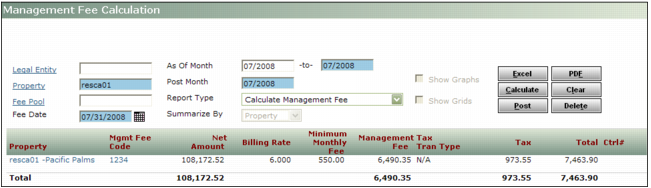
Click Calculate. A table showing the calculated amounts appears below the filter.
|
|
a
|
|
b
|
Click Display. A summary of the management fees calculated, by property, is displayed.
|
|
a
|
|
b
|
|
c
|
Click Display. The transactions used to create the management fee calculation is displayed.
|
|
|
If you leave the Management Fee Calculation screen without posting, the calculation is saved. When you return to the Management Fee Calculation screen, you cannot calculate management fees for the same period. To review the management fees, you must select the Report Type: Unposted Management Fee Summary or Unposted Management Fee Detail.
|
|
6
|
To post the management fees and create the expense transaction, click Post. A confirmation requests appears.
|
|
7
|
Click OK. The table displays the posted amount in bold.
|
|
|