Yardi-compatible forms and check stock can be purchased through Forms for Yardi and Safeguard Computer Forms and Supplies. See “Service and Products” in the Voyager Core Setup Guide for ordering information.
|
1
|
 |
If you are using Voyager Construction and Job Costing, select Payable (JC) > Checks > Process Checks. The Construction and Job Costing filter includes an additional field, which is described in this procedure with the designation “Construction only.”
|

Property Type or select a property code.
Job (Construction only) Type or select a job code.
Bank Type or select a bank account code.
Vendor Type or select a vendor code.
Or Tenant Type or select a resident or lease code.
Batch # Type the payable batch number.
Inv. Due by If you type a date, Voyager will select all payables due on or before this date.
Invoice Number Type the payable invoice control number.
Notes If you type text, Voyager will select only payable invoices with matching text in the Notes field.
Post Date Type or select the check date.
Post Month Type the month these checks will affect the G/L.
If Funds Select Yes to write checks only if the bank account has enough funds. Select No to write checks even if the account currently does not have enough funds.
Select All Select Yes to automatically select all checks on the Selective Check Write screen. Select No to leave the checks unselected.
|
4
|
|
5
|
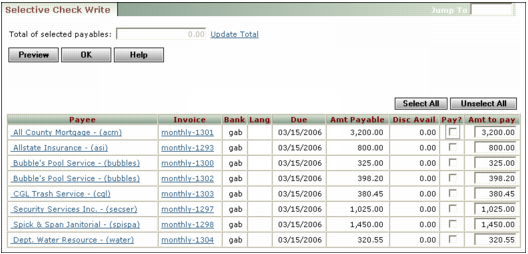
Make sure the Pay check box is selected for each payable you want to pay.
|
|
|
Credits (identified by a negative amount in the Amt Payable column) must be balanced by invoices for an equal positive amount. Voyager ignores credits that are not balanced by a positive amount.
|
|
6
|
Adjust the amounts in the Amt to pay field as needed.
|
|
7
|
Click Update Total if you want to view the total amount of the checks selected for payment.
|
|
8
|
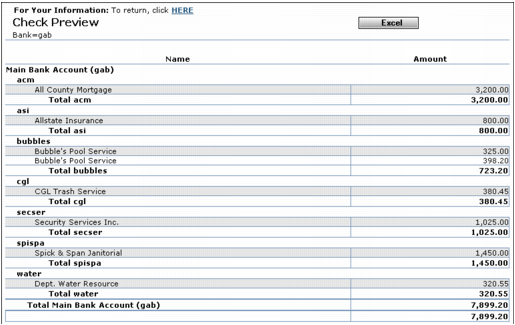
If you want to preview the checks on the screen before processing, click Preview. A preview report appears on the screen. Click the HERE link to return to the Selective Check Write screen.
|
|
9
|
Click OK. Voyager asks for confirmation.
|
|
10
|
|
11
|
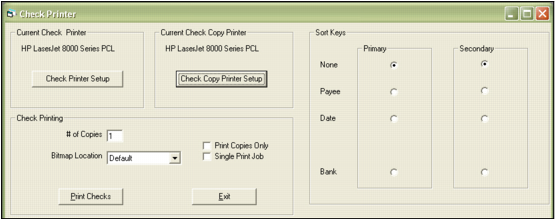
Review the printer settings and click Print Checks. The printer prints the checks and Voyager displays a confirmation message.
|
|
12
|
Click OK.
|