Second, if your workflow requires approvals, the adjustment must be approved. See “Approving Payables”.
|
1
|
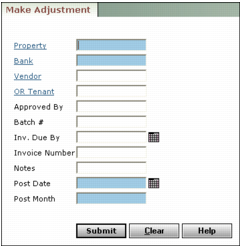
Property Type or select a property code.
Bank Type or select a bank account.
Vendor Type or select a vendor code.
OR Tenant Type or select a resident code.
Approved By Type the name or code for the person who approved the adjustment.
Batch # Type the number of the payable batch.
Inv. Due By If you include a date, Voyager will select all payables with the Type of Adjustment with a Due by date on or before this date.
Invoice Number Type the invoice number.
Notes If you type text, Voyager will select only payable invoices with matching text in the Notes field.
Post Date Type the processing date.
Post Month Type the month the transactions affect the G/L (mm/yy).
|
3
|
|
4
|
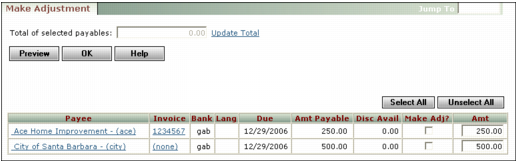
Make sure the Make Adj check box is selected for each adjustment you want to write to the books.
|
|
5
|
Adjust the amounts in the Amt field as needed.
|
|
6
|
Click Update Total if you want to view the total amount of the checks selected for payment.
|
|
7
|
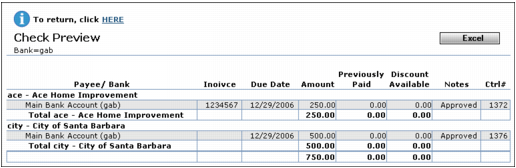
If you want to preview the adjustments before processing, click Preview. A preview report appears on the screen. Click the HERE link to return to the Make Adjustment screen.
|
|
8
|
Click OK. Voyager asks for confirmation.
|
|
9
|
Click OK. Voyager displays a confirmation message.
|
|
10
|
Click OK.
|