This section explains how to process T5 Return of Investment Income forms for interest paid to Canadian residents. For information about processing interest income for U.S. residents, see the Voyager End-of-Year Procedures Guide for the tax year.
 |
Roommates that have the Lessee check box selected on the Roommate screen will appear on the T5 Report. The primary resident and the first roommate will appear on the T5 slip, T5 Summary and the T5 Summary XML file.
|
|
1
|
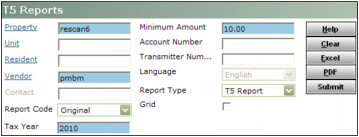
From the side menu, select Residential > Deposit Interest > T5 > T5 Analytics. The T5 Reports screen appears.
|
|
2
|
Property Type or select the code for one or more properties.
Unit Type or select the code for one or more units
Resident Type or select the code for one or more residents.
Vendor Type or select the vendor code for the management organization that is issuing the T5 form.
Report Code Select either Original, Amended, or Cancelled as the type of T5 slip that you want to generate.
Tax Year Type the taxation year.
Minium Amount Type the minimum amount of deposit interest paid for which you will issues a T5 slip.
|
4
|
Click Submit. A tables showing the T5 information appears.
|
|
1
|
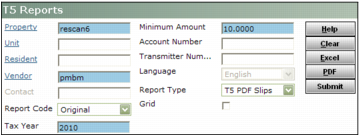
From the side menu, select Residential> Deposit Interest > T5 > T5 Analytics. The T5 Reports screen appears.
|
|
2
|
Property Type or select the code for one or more properties.
Unit Type or select the code for one or more units
Resident Type or select the code for one or more residents.
Vendor Type or select the vendor code for the management organization that is issuing the T5 form.
Report Code Select either Original, Amended, or Cancelled as the type of T5 slip that you want to generate.
Tax Year Type the taxation year.
Minium Amount Type the minimum amount of deposit interest paid for which you will issue a T5 slip.
|
4
|
Click Submit. The T5 Statement of Investment Income form appears.
|
|
1
|
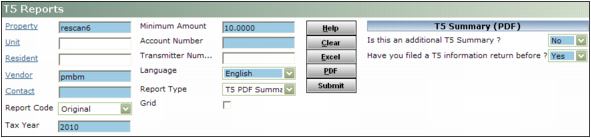
From the side menu, select Residential > Deposit Interest > T5 > T5 Reports. The T5 Reports screen appears.
|
|
2
|
Property Type or select the code for one or more properties.
Unit Type or select the code for one or more units
Resident Type or select the code for one or more residents.
Vendor Type or select the vendor code for the management organization that is issuing the T5 form.
Contact Type or select the code for the contact for management organization that is issuing the T5 form.
Report Code Select either Original, Amended, or Cancelled as the type of T5 slip that you want to generate.
Tax Year Type the taxation year.
Minium Amount Type the minimum amount of deposit interest paid for which you will issue a T5 slip.
Account Number Type your Business Account Number.
Is this an additional T5 Summary? If this is an original T5 Summary, select No. If this is an additional T5 Summary, select Yes.
Have you filed a T5 Information return before If you have filed a T5 Summary in previous years, select Yes. If you have not filed a T5 Summary, select No.
|
4
|
Click Submit. The T5 Summary form appears.
|
|
1
|
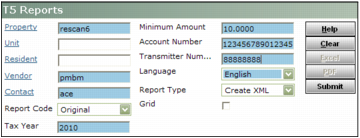
From the side menu, select Residential > Deposit Interest > T5 > T5 Reports. The T5 Reports screen appears.
|
|
2
|
Property Type or select the code for one or more properties.
Unit Type or select the code for one or more units
Resident Type or select the code for one or more residents.
Vendor Type or select the vendor code for the management organization that is issuing the T5 form.
Contact Type or select the code for the contact for management organization that is issuing the T5 form.
Report Code Select either Original, Amended, or Cancelled as the type of T5 slip that you want to generate.
Tax Year Type the taxation year.
Minium Amount Type the minimum amount of deposit interest paid for which you will issues a T5 slip.
Account Number Type your Business Account Number.
Transmitter Number Type the electronic submission number issued to you by the Canada Revenue Agency.
|
4
|
Click Submit.
|