|
1
|
From the side menu, select Charges > Post Sales Tax. The Sales Tax filter appears. It includes two sets of tax fields so that you can enter two taxes in the same screen. The first set includes the numeral 1 at the end of the field labels; the second set includes the numeral 2 at the end of the field labels. If you are posting only one sales tax, use the tax fields with the numeral 1 at the end of the field label.
|
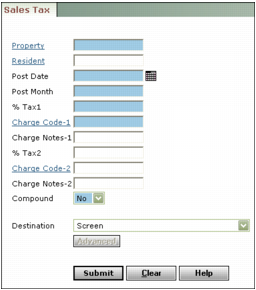
Property Type or select a property, properties, or a property list.
Resident Type or select a resident or tenant.
Post Date Type or select the date to post sales tax charges.
Post Month Type the month you want these sales tax charges to affect the general ledger (mm/yy).
% Tax1 Type the percent of the charges you want to post as sales tax. You can enter a whole or decimal number. For example, to charge five percent tax, enter 5; to charge five-and-a-half percent, enter 5.5.
Charge Code-1 Type the sales tax charge code for posting the tax percent you defined in %Tax1.
Charge Notes-1 Type the charge description you want to appear on your Sales Tax posting report.
|
5
|
If you are posting two sales taxes, complete the Compound field. Select Yes if you want to apply the second tax to the amount of the first tax. Otherwise select No.
|
|
6
|
|
7
|
Click Submit to post your sales tax to a batch. Voyager creates a report as specified in the Destination drop-down list.
|
The sales tax report appears if you selected a screen option. Click the Internet Explorer Print button  to print the displayed report.
to print the displayed report.A Windows Explorer File Download screen appears if you selected a download option. Follow standard Windows procedures to download the file.