 |
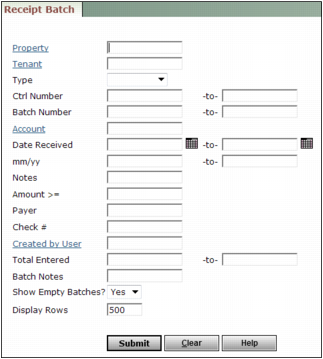
The Batch Receipt filter appears.
|
2
|
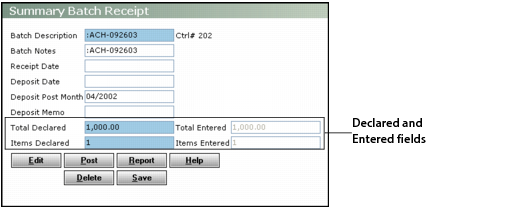
The Declared and Entered fields must match before you can proceed. If they do not match, you must modify the amounts in the Declared fields or edit the batch.
|
5
|
Click Post. Voyager displays a confirmation message.
|
|
6
|
Click the top HERE link to view and print the deposit slip. For information about printing the deposit slip, see “Printing Reports”.
|
 |
|
If you select an option from the Type field, you can choose a customer, owner, or vendor from the list that appears when you click the Tenant field label.
|
|||||||||
|
|||||||||
|
|||||||||