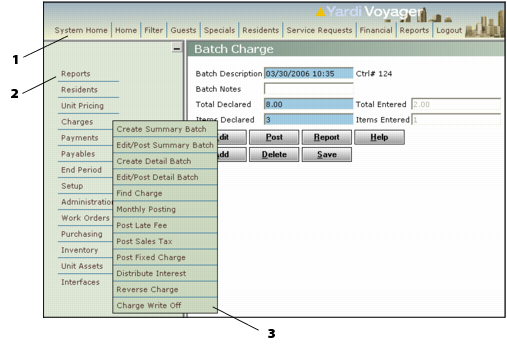
The top menu (referred to in the Voyager Menu Editor as the Title Menu) provides access to frequently used tasks in Voyager, as well as links to the Home and Logout menus. Top menu commands vary depending on the Voyager system and dashboard that you are using and how Voyager was set up. The Home, Filter, and Logout/Sign Out links are always available. Commands commonly found in the top menu include:
|
Returns you to the home page associated with your logon. For example, if you entered the Voyager Commercial user interface through the Commercial Property Manager Dashboard, this link returns you to that dashboard.
|
|
|
Opens the filter associated with a the data screen that appears in the main part of the screen. For example, if you are viewing the Customer screen and want to view a record for a different customer, click Filter to access the Customer filter. For information about filters, see “Filters”.
|
|
The side menu provides access to submenus from which you choose the Voyager screen that you want to work with. The instruction “From the side menu, select Charges > Review Charge” means to click Charges in the side menu and then click Review Charge in the submenu.