Voyager User Interface : Lookup Lists

Lookup Lists
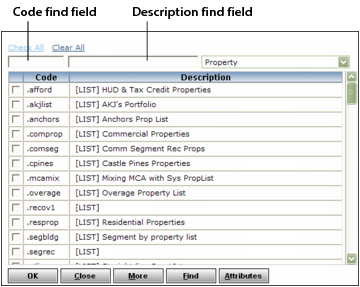
Many field labels are links. Clicking one of these labels opens a lookup list that displays codes you can use to complete the field. You can scroll to the item you want, or search for it.
Depending on whether the field you are completing supports multiple entries, you can select one or more items from the list. In some lookup lists, you select items by clicking the appropriate check box. In others, you simply click the item in the list.
Using Wildcards
You can use the percent sign (%) as a wildcard character. For example, if you are looking for all property codes that include the letters com, include the percent sign before and after com in the code find field: %com%. The following examples use the Property lookup list:
If you are looking for all property codes that begin with the letters pa, include the percentage sign after pa in the code find field.
c
Click Find and the list displays all properties with a code that begins with pa.
If you are looking for all properties that contain the word palm in the description, enclose the word in percentage signs in the description find field.
c
Click Find and the list displays all properties with the word palm in the description.