The Reports menu organizes reports by subject. For example, property reports include portfolio data such as cash balance summaries and portfolio analysis. Financial reports include accounting data such as income statements and balance sheets. Resident reports include lease charges, lease expirations, resident ledgers, and statements.
|
1
|
Select Reports > Report Category > Report Title, or click a report link in a dashboard or quick menu. A report filter appears.
|
|
3
|
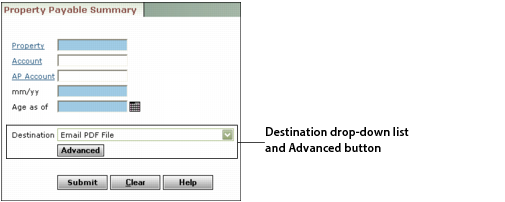
If the filter includes a Destination drop-down list, select the destination. See “Using the Destination Drop-Down List” for more information.
|
|
4
|
|
5
|
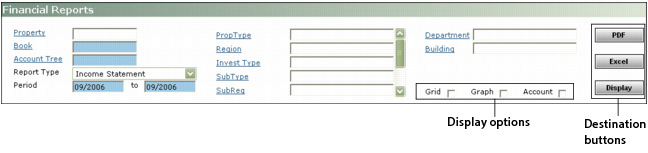
Click Submit or, if the report includes a separate button for each destination, click the button for the destination you want. See “Using Destination Buttons” for more information.
|
|
6
|