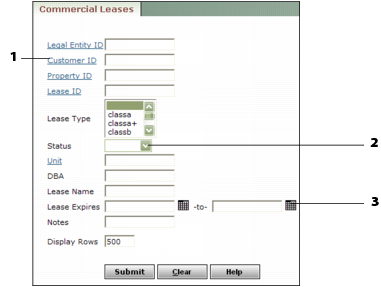
After you complete the filter and click Submit, Voyager displays a record that matches the filter criteria. The record may appear in a new screen or in a different part of the same screen as the filter. If more than one record matches the filter criteria, a list of matching records appears in a navigation list on the left side of the screen.
|
c
|
Enter criteria to find a specific record. For example, to find the record for a specific property, type the property code in the Property field in the Property filter.
|
|
c
|
Enter criteria to narrow the range of records that Voyager finds. For example, to find lease records for just one property, enter the code for that property in the Property field of the Commercial Leases filter. You can narrow the range further by using multiple criteria. For example, if you want to find current leases for a property, complete both the Property and Status fields.
|
 |
|
c
|
Enter no criteria to find all records of a particular type. For example, if you want to find all property records, you would enter nothing in the Property filter. Then all property records appear in the navigation list.
|