You enter a prepay as a receipt or a part of a receipt. When you enter an amount in the Amount field on the Receipt screen and then tab or click outside of that field, Voyager automatically applies the amount to charges in the charge table that appears at the bottom of that screen. If the amount of the receipt exceeds the total amount of the charges, Voyager creates a prepay line in the receipt detail table and assigns the excess amount to that line.
This section describes what to do with a prepay on the Receipt screen for a receipt in a detail batch. It does not describe how to create a receipt batch or how to complete fields on the Receipt screen that are not specific to prepays. For detailed descriptions of receipt procedures and fields, see “Detail Receipt Batch Procedures”.
 |
Voyager uses the prepay accounts specified in the Accounts & Options screen for prepays entered in a summary receipt batch. Such prepays are automatically applied to the first available charges or, if a Hold for account is specified in the Account Info screens for the prepay accounts, to charges to the hold-for account.
|
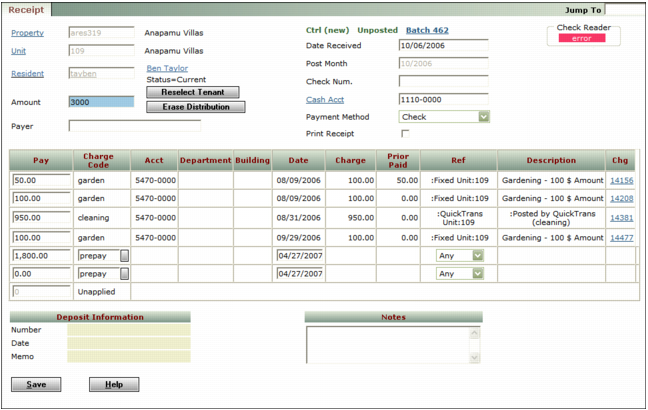
Leave the charge code set to the default (prepay) so that the funds remain in the prepay income account on the cash books until Voyager automatically applies the funds to a charge.
In the Charge Code field, select the charge code (for instance, rent) to which you want Voyager to automatically apply the funds, and select Hold for from the Ref drop-down list.
|
|
|
|
If you want Voyager to automatically apply all prepays to the same type of charge, specify the G/L account for that charge type in the Hold for field on the Account Info screen for the prepay income G/L account. For more information, see “Setting Up Prepay G/L Accounts”.
|
Select Manual from the Ref drop-down list. If you specify that a prepay is manual, you must manually apply the prepay in a detail batch. For more information about applying prepays, see “Manually Applying Prepays”.
|
|