|
Updates the deposit based on the deposit rule, matching the charges for the specified charge codes as of the number of days specified after the date in the To Date field. The new deposit charge is the total of all lease charges then active for that resident that uses a charge code with the type of Rent.
|
|
|
Updates the deposit based on the deposit rule, matching the charges for the specified charge codes as of the number of days specified after the date in the To Date field. The new deposit charge is the total of all lease charges then active for that resident that uses a charge code with the type of Rent.
|
 |
|
1
|
From the side menu, select Residential > Deposit Interest > Distribute Deposit Interest. The Distribute Deposit Interest screen appears.
|
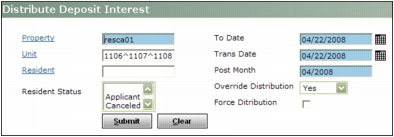
Property Type or select a code for one or more property or property lists.
Unit Type or select a code for one or more units.
Resident Type or select a code for a resident.
Resident Status Select one or more resident statuses.
To Date Type or select the date from the To Date field that was used for the deposit interest calculation.
Trans Date Type the date you want the transactions posted.
Post Month Type the month you want the transactions posted.
Override Distribution If you have made a change to the distribution by editing the Credit Amount, Refund or Update Deposit fields, and you want to keep the changes, select No. If you want to return to Voyager's default distribution, select Yes.
This is applicable to saved worksheets only. If you select Yes, Voyager overrides the manual changes.
Force Distribution If you want to distribute interest to everyone, regardless of the date specified in the Post Dep Int Date field in the deposit interest rule.
|
3
|
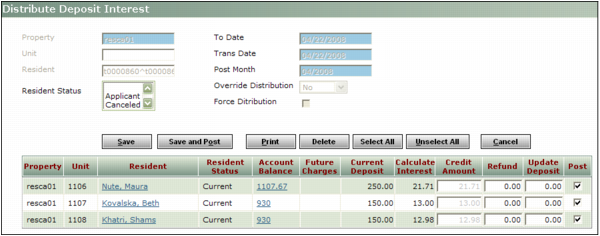
Click Submit. A table showing the residents that can receive a deposit-interest distribution appears.
|
|
4
|
|
5
|
|
6
|
For each resident who should receive a deposit-interest distribution, select the corresponding Post check box for each resident who should receive a deposit distribution.
|
 |
If you want to select most of the residents in the list, click the Select All button and then clear the Post check box corresponding to each resident that you do not want to include in the distribution.
|
|
8
|
If you want to complete the distribution, click Save and Post. Voyager posts the transactions to the resident ledger and distributes the interest.
|
|
9
|
If the method in the Default Distribution field for this rule is either Check or Increase Deposit, Balance to Check, follow standard Voyager procedures for processing checks or electronic payments. For more information, see “Payment Procedures”.
|
|
1
|
From the side menu, select Residential > Deposit Interest > Distribute Deposit Interest. The Distribute Deposit Interest screen appears.
|
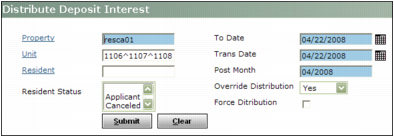
Property Type or select a code for one or more property or property lists.
Unit Type or select a code for one or more units.
Resident Type or select a code for a resident.
Resident Status Select one or more resident statuses.
To Date Type or select the date from the To Date field that was used for the deposit interest calculation.
Trans Date Type the date you want the transactions posted.
Post Month Type the month you want the transactions posted.
|
|
|
3
|
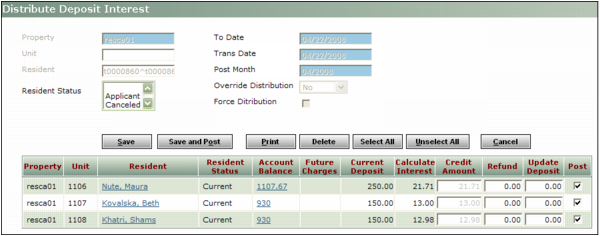
Click Submit. A table showing the residents that can receive a deposit-interest distribution appears.
|
|
4
|
Click Delete. A confirmation request appears.
|
|
5
|
Click OK.
|