|
Recalculates the amount of deposit interest on the Deposit Info tab on the Resident screen. This may be required after reversing a deposit interest calculation or distribution if there is a discrepancy between the Deposit Interest Liability Detail report and Interest Accrued field on the Deposit Info tab.
|
|
1
|
From the side menu, select Setup> Deposit Interest > Utilities > Reverse Deposit Interest Calculation. The Reverse Deposit Interest Calculation filter appears.
|
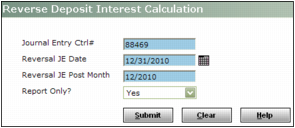
Journal Entry Ctrl# Type the control number for the journal entry that you want to reverse.
 |
If you do not know the batch number, you can generate a Deposit Interest Liability Detail report. From the side menu, select Residential > Deposit Interest > Reports > Deposit Interest Liability Detail Report. For more information, see “Deposit Interest Reports”.
|
Reversal JE Date Type the date for the journal-entry reversal.
Reversal JE Post Month Type the post month for the journal-entry reversal.
Report Only If you want to review the report prior to reversing the journal entry, select Yes. If you want reverse the journal entry, select No.
|
3
|
Click Submit.
|
|
4
|
If you selected No in the Report Only field, a confirmation request appears. Click OK. The Reverse Deposit Interest Calculation report appears.
|
 |
Voyager reverses the deposit interest calculation and adjusts the date in the Last Accrued field on the Deposit Info tab on the Resident screen
|
1
|
From the side menu, select Setup > Deposit Interest > Utilities > Reverse Deposit Interest Distribution. The Reverse Deposit Interest Distribution screen appears.
|
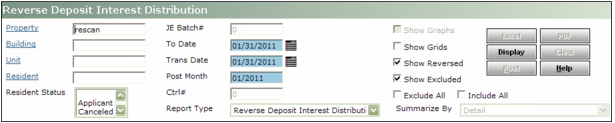
Property Type or select a code for one or more property or property lists.
Building Type or select a code for one or more buildings.
Unit Type or select a code for one or more units.
Resident Type or select a code for a resident.
Resident Status Select one or more resident statuses.
To Date Type or select the last day of the calculation period.
Trans Date Type the transaction date for the reversal.
Post Month Type the month to post the transactions.
Show Reversed If you want Voyager to display reversed transactions, select this check box.
Show Excluded If you want Voyager to display excluded transactions, select this check box.
|
3
|
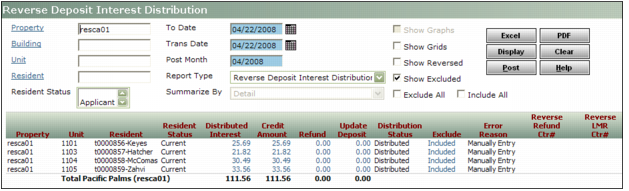
Click Display. A table showing the deposit interest distributions that can be reversed appears.
|
|
|
|
4
|
In the Exclude field corresponding to each distribution that you want to review, click the word “Included” to change it to “Excluded”.
|
|
|
If you want to reverse all of the distributions on the list, you can click the Exclude All check box.
|
 |
|
5
|
Click Post. A confirmation message appears in the information bar.
|
If you reversed the interest distribution for all residents included in the calculation, you can reverse the interest calculation. For information, see “To reverse a deposit-interest calculation”.
If you reversed an interest distribution for some, but not all, residents included in the calculation, you can redistribute the undistributed amount. For more information, see “To distribute deposit interest”.
|
1
|
From the side menu, select Setup > Deposit Interest > Utilities > Rebuild Tenant Deposit Interest. The Rebuild Resident Deposit Interest filter appears.
|
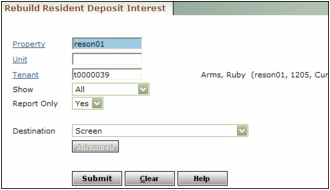
Property Type or select a code for one or more properties or property lists.
Unit Type or select a code for one or more units.
Tenant Type or select a code for one or more residents.
Show Select which residents you want Voyager to include in the rebuild function.
All Voyager includes all residents
Only Difference Voyager includes residents where the actual amount differs from the amount displayed on the Deposit Info tab on the Resident screen.
Report Only If you want Voyager to display the report without rebuilding the deposit interest, select Yes. If you want Voyager to display the report and to rebuild the deposit interest, select No.
|
3
|
Click Submit.
|
|
4
|
If you selected No in the Report Only field, a confirmation request appears. Click OK. The Rebuild Resident Deposit Interest report appears.
|