You use the Deposit Interest Rule Details to add, edit, or delete deposit interest rules.
|
1
|
From the side menu, select Setup > Deposit Interest > Rules > Add Rule. The Deposit Interest Rule Details screen appears.
|
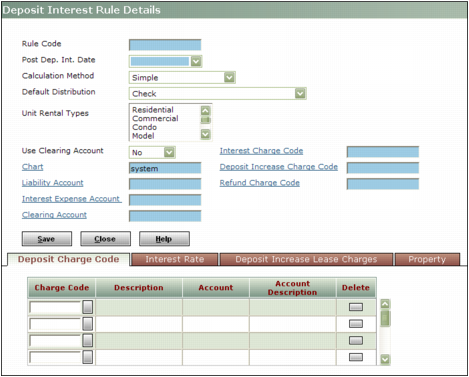
Rule Code Type a unique code.
Calculation Method Select the interest calculation method.
Simple Voyager calculates interest based on the amount of the deposit only.
Compound Voyager calculates interest based on the amount of the deposit plus annually accrued interest. For example, if the interest rate is 5% and the deposit is $1000, and the resident lived in the unit for two years, the compounded interest would be $102.50: $50 for the first year ($1000 + 5%) and $52.50 the second year ($1050 + 5%). If you select Compound, Move Out is automatically selected the Post Dep. Int. Date field, because compound interest is calculated only when a resident moves out. (Other methods distribute interest annually, so compounding is unnecessary.)
Post Dep Int Date Select the date on which to distribute deposit-interest.
JAN - DEC Voyager distributes deposit interest for all residents in the selected month.
Anniversary Voyager distributes deposit interest using the month in the Anniversary field on the Deposit Info tab of the Resident screen.
Move Out Voyager distributes deposit interest at move-out. If you selected Compound in the Calculation Method field, Voyager automatically selects this option.
Default Distribution Select the default distribution method:
Check Voyager distributes interest by check or electronic payment.
Credit Charge Voyager creates credit charges for the deposit interest.
Increase Deposit, Balance to Check Voyager increases the deposit to match the total of lease charges associated with the charge codes specified in the rule; applies deposit interest to the increased deposit amount; and distributes the remaining balance, if any, as a check or electronic payment.
If you select this option, the Increase Deposit Calculation check box appears below the Refund Charge Code field.
Increase Deposit, Balance to Credit Voyager increases the deposit to match the total of lease charges associated with the charge codes specified in the rule; applies the deposit interest to the increased deposit amount; and distributes the remaining balance, if any, as a credit charge.
If you select this option, the Increase Deposit Calculation check box appears below the Refund Charge Code field.
Unit Rental Type Select the rental types to which you want to apply the rule.
Use Clearing Account If you want Voyager to move all deposit distributions from the liability account to a clearing account with one journal entry, and then make the distributions from the clearing account, select Yes. If you want the deposit interest liability account to show a journal entry for each deposit interest distribution to a resident, select No.
Chart Select the chart of accounts. This field appears only if your system is configured for multiple charts of accounts.
Liability Account Type or select the G/L account number for the account to which you want Voyager to post interest liability.
Interest Expense Account Type or select the G/L account number for the account that you want Voyager post the interest expense.
Clearing Account Type or select the G/L account number for the clearing account. You must complete this field even if the Use Clearing Account field is set to No, because the clearing account is also used for refunds.
Interest Charge Code Select the charge code for deposit interest. Voyager uses this charge code to distribute interest to the resident ledger. This charge code should not be used for anything except deposit interest. If the Use Clearing Account field is set to No, this charge code should be associated with the liability account. If the Use Clearing Account field is set to Yes, this charge code should be associated with the clearing account.
Deposit Increase Charge Code Select the charge code for deposit increases. If you selected either Increase Deposit, Balance to Check or Increase Deposit, Balance to Credit for the default distribution method, Voyager uses this charge code to credit deposit interest.
Refund Charge Code Select the charge code for deposit interest credits or payables. Voyager uses this charge code for the deposit interest credited or payable to the resident. This charge code must be associated with the G/L account specified in the Clearing Account field.
|
3
|
If you selected either Increase Deposit, Balance to Check or Increase Deposit, Balance to Credit for the default distribution method, complete the following fields in the Increase Deposit Calculation section that appears:
|
To Calculate Amount If you want Voyager to create a charge equal to the increased deposit amount, select this check box. For example, if the deposit was $500, the new rent is $600, and the interest distribution is $20, Voyager creates a charge for $100. After applying the $20 interest distribution, the resident ledger would show $80 due.
Future Lease Charge Is Type the number of days after the current lease period that Voyager should use to determine the new deposit amount. Voyager calculates the deposit amount on the lease charges specified on the Deposit Increase Lease Charges tab on this screen, as of the day specified in this field. For example, if the lease period ends August 31 and the new lease charges begin September 1, you would type 1 in this field. Voyager would then add the lease charges as of September 1 to determine the new deposit amount.
|
4
|
|
5
|
On the Deposit Charge Code tab, complete the Charge Code field for each deposit charge code that you want Voyager to calculate interest for.
|
 |
|
6
|
Click Save.
|
|
7
|
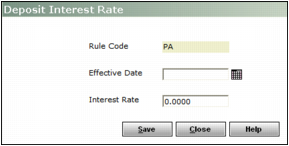
Click the Interest Rate tab and then click the New Record button
 . The Deposit Interest Rate screen appears. . The Deposit Interest Rate screen appears. |
|
8
|
In the Effective Date field, type or select the start date for the interest rate that you are adding.
|
|
|
|
9
|
In the Interest Rate field, type the interest rate percentage.
|
|
10
|
 |
|
11
|
If the default distribution method is either Increase Deposit, Balance to Check or Increase Deposit, Balance to Credit, click the Deposit Increase Lease Charges tab and complete the Charge Code field for each deposit charge that you want Voyager to include when it calculates the amount of new deposits.
|
|
|
|
12
|
|
13
|
Click the Property tab.
|
|
14
|
In the Property Code field, type or select the property code for each property that you want to use this rule.
|
|
|
|
15
|
Click Save.
|
|
16
|
|
a
|
Click the Property tab.
|
|
b
|
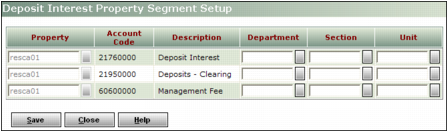
Click the Segment Setup button corresponding to the property that you want to add segment information to. The Deposit Interest Property Segment Setup screen appears.
|
|
d
|
Click Save.
|
|
e
|
Click Close.
|
|
1
|
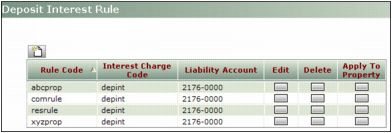
From the side menu, select Setup > Deposit Interest > Rules > Review Rule. The Deposit Interest Rule screen appears.
|
|
a
|
Click the Delete button corresponding to that rule. A confirmation request appears.
|
|
b
|
Click OK.
|
|
a
|
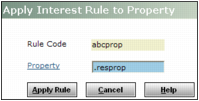
Click the Apply to Property button corresponding to that rule. The Apply Interest Rule to Property screen appears.
|
|
c
|
Click Apply Rule. Voyager updates the properties on the Property tab of the Deposit Interest Rule Details screen.
|
|
4
|
Click the Edit button corresponding to the rule that you want to review. The Deposit Interest Rule Details screen appears.
|
|
5
|
Click Edit.
|
|
7
|
|
1
|
Open the resident record. For more information, see “Reviewing and Editing Resident Records” in the Voyager Residential User's Guide.
|
|
2
|
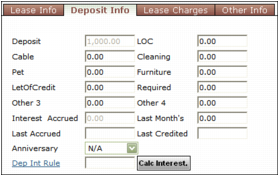
Click the Deposit Info tab.
|
|
3
|
In the Dep Int Rule field, type or select the code for the deposit interest rule.
|