|
1
|
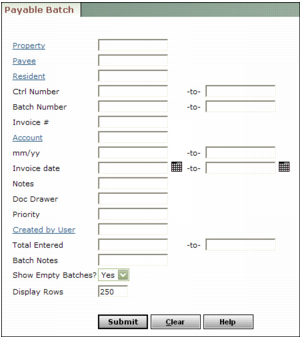
Property Type or select a property code.
Payee Type or select a payee code. If the payee is a vendor, you can select the code from the lookup list. If the payee is a resident or other non-vendor, you must type the payee code.
Resident Type or select a resident code.
Ctrl Number Type or select a control number or range of control numbers.
Batch Number Type or select a batch number or range of batch numbers.
Invoice # Type an invoice number.
Account Type or select a G/L account number.
mm/yy Type a month or range of months.
Invoice Date Type or select a date or range of dates.
Notes Type text from the Remarks field for a line item.
Check # Type the check number.
Created by User Type or select a user code.
Total Entered Type an amount or range of amounts.
Batch Notes Type text from the Notes field for the batch.
Show Empty Batches Select whether you want Voyager to display the links for empty batches in the list of batches that match the search criteria.
|
3
|
|
4
|
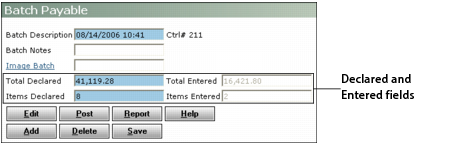
If necessary, adjust figures in the Declared fields to compensate for the payable you are about to delete.
|
|
5
|
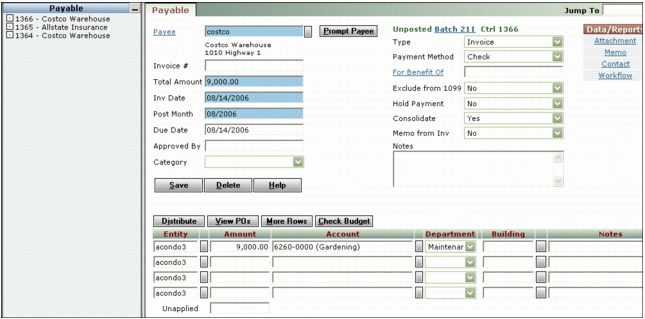
Click Edit. The Payable screen appears, displaying the first payable in the batch. A list of payables included in the batch appears in the navigation list on the left side of the screen.
|
|
7
|
Click Delete. Voyager asks you to confirm that you want to delete the payable.
|
|
8
|
Click OK. Voyager deletes the payable and displays a confirmation message.
|