|
1
|
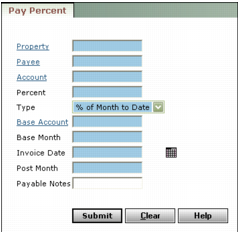
Property Type or select a property code.
Payee Type or select the payee (owner, resident, or vendor) code.
Account Type or select the G/L expense account.
Percent Type the percentage as a whole or decimal number.
Type Select the basis for the percentage calculation.
Base Account Type or select the number of the G/L account for calculating the payment. Voyager uses the balance in this account to calculate the percentage.
Base Month Type the month for the base account balance (mm/yy). If you selected % of Year to Date as the Type, Voyager uses the fiscal year-to-date balance through this month.
Invoice Date Type or select the date you want to record the invoices.
Post Month Type the month you want the invoices to affect the G/L (mmyy).
Payable Notes Type text to appear in the Notes field of the commission invoice.
|
3
|