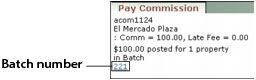
This section describes how to use the Pay Commission feature to pay management fees. You can also use the Management Fees feature to pay management fees. For information and the differences between the two features, see “Property-Management Fees Overview”.
You specify which G/L accounts are included in commission calculations in the Account Info screen for each G/L account. You set up commission percentages in the Ownership screen for each property. If the Ownership screen includes a monthly minimum commission, Voyager pays whichever is higher--the commission percentage or the minimum. For information about setting up the Account Info and Ownership screens, see “Setting Up Pay Commission”.
|
1
|
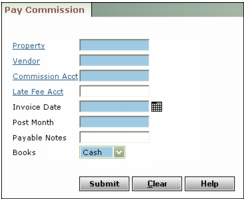
Property Type or select the code for one or more properties or property lists.
Vendor Type the vendor code for the property-management organization.
Commission Account Type or select the G/L account number for management commission.
Late Fee Acct If you want 100% of late fees to be paid as commission, type or select the late fee G/L account number. If you want to pay the same commission percentage for late fees as you do for other G/L accounts, leave this field empty and select the Commissionable check box in the Account Info screen for the late fees G/L account.
Invoice Date Type or select the date for the commission invoice.
Post Month Type the month that the commission invoice will affect the G/L (mmyy). The post month can be different from the month for which you are posting commission (the operating month).
Payable Notes Type text that you want to have appear in the Notes field of the commission invoice.
Books Select the accounting book.
|
3
|
Click Submit.
|