|
1
|
 |
If you are using Voyager Construction and Job Costing, select G/L (JC) > Create Batch Job Cost JE. The Construction and Job Costing Journal Entry screen includes additional fields, which are described in this procedure with the designation “Construction only.”
|
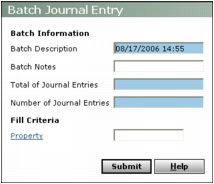
Batch Description Accept the default (current date and time) or type a new description.
Batch Notes Type remarks for your new batch. These remarks appear in the Notes field of the journal entry batch.
Total of journal entries Type the total monetary amount of all journal entries in the batch.
Number of journal entries Type the number of journal entries in the batch.
Fill Criteria If all journal entries in the batch are for the same property, type or select the property code so that Voyager can automatically complete the Property field for each journal entry. (This field does not appear in Voyager Construction and Job Costing.)
|
3
|
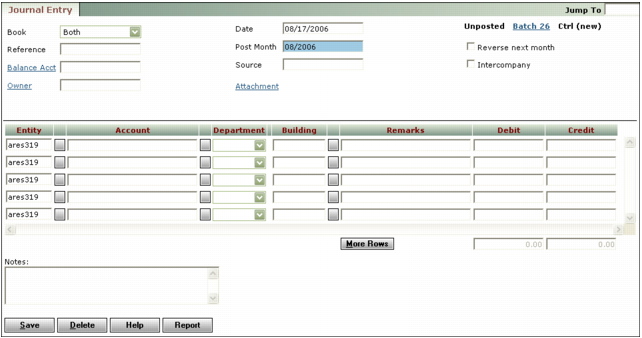
Book Select the accounting basis for the journal entry. If you select Both, Voyager keeps cash and accrual records for the journal entry.
Reference Type remarks to use as a reference. Voyager includes the reference in the Journal Entry Register report. You can use the reference as selection criteria.
Balance Acct Select the account to use for balancing a property's books if the journal entry is not balanced for each included property. This field appears only if Multiple Properties on JE is selected in the Accounts & Options screen.
Owner If you are entering this journal entry for an owner distribution, select the owner.
Date This field displays the date the journal entry will be recorded. Accept the system date or type a different date.
Post Month This field displays the month the journal entry affects the G/L. Accept the current operating month or type a different month.
Source Type the source of the journal entry. Voyager includes the source on the Journal Entry Register report. You can use the source as selection criteria.
Reverse next month Select this check box if you want Voyager to automatically create a second journal entry reversing this journal entry the following month. If this check box is selected, Voyager creates the journal entry and the reversing journal entry simultaneously.
Income JE (Construction only) Select this check box if this journal entry is for income.
Intercompany Select this check box if this is an intercompany journal entry.
Contract (Construction only) If you are making the journal entry for a contract, enter the contract.
Job (Construction only) If you are making a journal entry for a specific job, enter the job.
Entity Type or select a property code for the line item. This column appears in the spreadsheet only if the Multiple Properties on JE check box is selected in the in the Accounts & Options screen.
Categ (Construction only) If you are making a journal entry involving a job category, enter the category.
Account Type or select a G/L account.
Remarks Type remarks for this line item.
Debit If this line item is a debit, type the monetary amount you want to debit. An amount in the Debit column increases the balance in an account with a normal balance of debit, and decreases the balance in an account with a normal balance of credit. Each debit must be balanced by a credit, and vice versa.
Credit If this line item is a credit, type the monetary amount you want to credit. An amount in the Credit column decreases the balance in an account with a normal balance of debit, and increases the balance in an account with a normal balance of credit. Each credit must be balanced by a debit, and vice versa.
Quan (Construction only) If you are using unit-based accounting, type the quantity of the item for which you are making this journal entry. See “Unit-Based Expense Tracking” in the Construction Management User's Guide.
Draw Date (Construction only) If necessary, override the automatically entered draw date.
|
6
|
Type remarks for the entire journal entry in the Notes field. Text from this field is searchable.
|
|
7
|
Click Save.
|
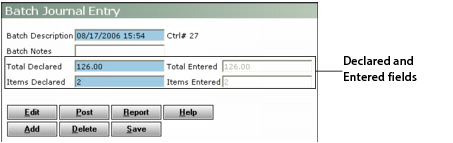
Repeat this process for each journal entry in the batch. Voyager presents a new Journal Entry screen until the total amount of the journal entries entered matches or exceeds the total declared, or the number of journal entries entered matches the items declared. Then the Batch Payable screen appears. This screen displays the total amount and number of items declared and entered.