This procedure explains how to create a batch using the detail batch procedure. For information about creating a batch using the summary batch procedure, see “Creating Summary Charge Batches”.
|
1
|
|
2
|
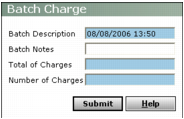
In the Total of charges field, type the total monetary amount for charges in the batch.
|
|
3
|
In the Number of charges field, type the quantity of charges in the batch.
|
|
4
|
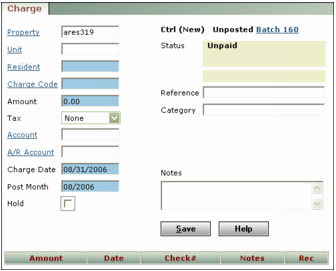
Property Type or select a property code.
Unit Type or select a unit code.
Resident Type or select a resident code, or type a vendor code, property owner code, or customer code.
Charge Code Type or select a charge code.
Amount Type the amount.
Tax Select To Be Posted if tax is to be applied. For information about posting the tax, see “Posting Sales Tax”.
Voyager changes the status to Posted as part of the posting process.
Account If you want to override the G/L account associated with the charge code, type or select a G/L account number. Otherwise, leave this field empty.
A/R Account If you want to override the G/L account specified in the Receivable field in the Accounts & Options screen, type or select a G/L account number. Otherwise, leave this field empty.
Charge Date Type or select the charge date.
Post Month Type or select the post month.
Reference, Category, Notes Complete these fields in accordance with your organization's requirements. Only the text in the Notes field appears on reports.
|
6
|
|
7
|
|
8
|
Complete each additional charge screen that appears. When the total entered matches or exceeds the total declared, or the number of items entered matches the number of items declared, the Batch Charge screen appears. If you want to post the batch now, continue.
|
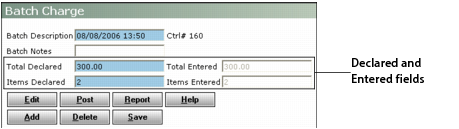
The Declared and Entered fields must match before you can proceed. If they do not, you can modify the amounts in the Declared fields or click the Edit button to return to the Charge screen and make changes there.
|
9
|
|
11
|
|
12
|
When asked to confirm that you want to post, click OK. Voyager posts the batch and displays confirmation.
|