|
c
|
Anniversary date on which to calculate deposit interest, if Post Dep Int Date on the deposit-interest rule is set to Anniversary. For information about setting up deposit interest rules, see “Setting Up Comprehensive Deposit Interest Rules”.
|
|
c
|
Amount of interest that the previous system calculated as having accrued since the last distribution. If you are converting from the simple interest-distribution method, the amount of deposit interest is shown in the Interest field on the Deposit Info tab of the Resident screen. For more information about calculating interest with the simple interest-distribution method, see “To calculate interest using simple deposit interest for one resident”.
|
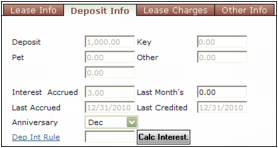
Conversion is a two-part process. You set up the information for conversion using the Deposit Interest Conversion worksheet. After completing the worksheet, you can then post the conversion. When you post the deposit interest conversion, Voyager creates two journal entries to accrue the deposit interest and reverse the amount accrued for each resident. The converions also updates the deposit interest records for each resident based on the information entered on the Deposit Interest Conversion worksheet. The deposit fields on the Deposit Info tab of the Resident screen show the deposit interest accrued and distributed.
 |
If there is a date in the Last Credited date field on the Deposit Info tab of the Resident screen, Voyager calculates deposit interest from that date forward. If there is no date in the Last Credited date field, Voyager calculates deposit interest from the time that you received the deposit, even if you did not start using this system until later.
|
|
|
|
|
|
1
|
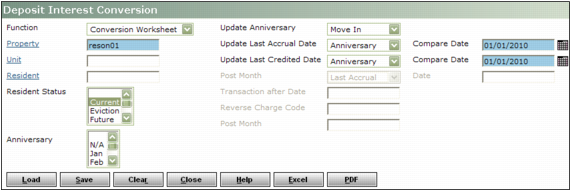
From the side menu, select Setup > Deposit Interest > Conversion > Deposit Interest Conversion. The Deposit Interest Conversion screen appears.
|
|
2
|
Property Type or select a code for a property or property list.
Unit Type or select a unit code.
Resident Type or select a resident code.
Resident Status Select a resident status.
Anniversary If the Simple Deposit Interest method was previously used and you want to convert the deposit interest record based on the Anniversary field on the Deposit Info tab on the Resident screen, select the month.
Update Anniversary Select how Voyager will determine which month to put in the Anniversary field on the Deposit Info tab of the Resident screen.
Move-In -1 The date in the Move In field on the Lease Info tab on the Resident screen, less one month. For example, if the move-in date is March, the Anniversary field is updated to February.
Update Last Accrual Date Select how Voyager updates the date when deposit interest was last accrued. This is the date up to which the previous system already calculated the deposit interest. Voyager calculates interest as of this date.
Anniversary Voyager uses the date from the Anniversary field as the last accrued date. If you select this option, you must also complete the Compare Date field
|
|
The date in the Compare Date field is typically the date on which you stopped using another system to calculate deposit interest and began using Voyager comprehensive deposit interest
Voyager uses this date to determine whether the last anniversary occurred in the current year or previous year. Based on the year in this date and the last day of the anniversary month, Voyager completes the Last Accrued Date field on the Deposit Interest Conversion worksheet.
For example, if the comparison date is June 30, 2010, Voyager uses the year 2010 for all anniversaries from January to June. It would use the year 2009 for all anniversaries from July to December. The month and day is the last day of the anniversary month. If the anniversary is November, the date in the Last Accrued Date field would be 11/30/2009.
|
Specify Date If you select this option, you must specify last accrual date in the Date field.
Update Last Credited Date Select how Voyager updates the date when deposit interest was last credited to the resident.
Anniversary Voyager uses the date from the Anniversary field as the last credited date. If you select this option, you must also complete the Compare Date field
|
|
The date in the Compare Date field is typically the date on which you stopped using another system to calculate deposit interest and began using Voyager comprehensive deposit interest.
Voyager uses this date to determine whether the last anniversary occurred in the current year or previous year. Based on the year in this date and the last day of the anniversary month, Voyager completes the Last Credited Date field on the Deposit Interest Conversion worksheet.
For example, if the comparison date is June 30, 2010, Voyager uses the year 2010 for all anniversaries from January to June. It would use the year 2009 for all anniversaries from July to December. The month and day is the last day of the anniversary month. If the anniversary is November, the date in the Last Credited Date field would be 11/30/2009.
|
Specify Date If you select this option, you must specify last credited date in the Date field.
|
|
You must complete either the Compare Date or Date field associated with the Update Last Credited Date field. If you have not distributed deposit interest to a resident in the other system, delete the date in the Last Credited Date field on the Deposit Interest Conversion worksheet.
|
|
4
|
Click Load. A table showing the residents' deposit interest information that will be converted appears.
|

|
5
|
If you are using simple interest, in the Interest Accrued field, type the amount of interest accrued in the other system for each resident.
|
|
7
|
In the Credited Amount (for T5) field, type the amount of interest credited in the other system for the current tax year.
|
 |
|
8
|
Click Save. A confirmation message appears on the top part of the screen.
|
|
1
|
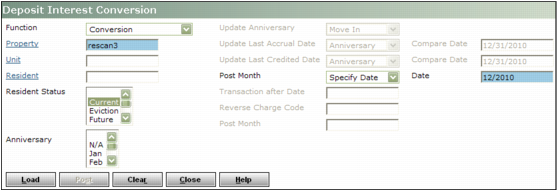
Property Type or select a code for a property or property list.
Unit Type or select a unit code.
Resident Type or select a resident code.
Resident Status Select a resident status.
Anniversary Select the month of the anniversary date. Voyager compares this date with the date in the Anniversary field on the Deposit Info tab on the Resident screen.
Post Month Select how Voyager sets the post month for deposit-interest transactions created by conversion.
Last Accrual Voyager uses the date from the Last Accrual Date field on the Deposit Interest Conversion worksheet.
Specify Date If you select this option, type the post month in the Date field.
|
3
|
Click Load. A table showing the deposit-interest information that will be converted appears.
|

|
4
|
Click Post. A confirmation request appears.
|
|
5
|
Click OK. Voyager creates a journal entry for each resident to accrue the deposit interest. A second journal entry is also created to reverse the accrued amount, so the net effect on the G/L account is 0.00.
|
|
|
|
1
|
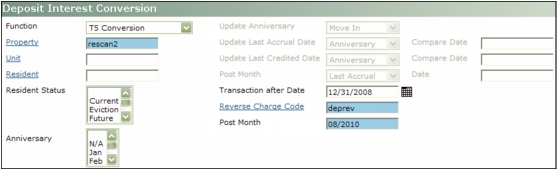
From the side menu, select Setup > Deposit Interest > Conversion > Deposit Interest Conversion. The Deposit Interest Conversion screen appears.
|
|
2
|
|
|
Property Type or select a code for a property or property list.
Unit Type or select a unit code.
Resident Type or select a resident code.
Resident Status Select a resident status.
Anniversary Select the month in the Anniversary field on the Deposit Info tab on the Resident screen for the records you want to convert.
Transaction After Date Type or select the date deposit interest was last credited that Voyager should include in the conversion.
Reverse Charge Code Type or select the charge code for deposit reversals.
Post Month Type the month in which you want Voyager to post the transactions.
|
4
|
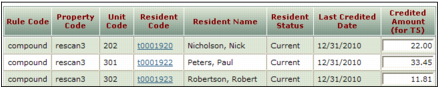
Click Load. A table showing the deposit interest information that will be converted for T5 reporting appears. If an amount was entered in the Credited Amount (for T5) field on the Conversion Worksheet, the amount appears.
|
|
5
|
If needed, edit the amount in the Credited Amount (for T5) field.
|
|
|
You must have an amount for at least one resident in the Credited Amount (for T5s) field in order to post the T5 Conversion.
|
|
6
|
Click Post. A confirmation request appears.
|
|
7
|
Click OK. Voyager creates a charge to the deposit interest charge code and a negative charge to the reverse charge code for the deposit interest distributed since the date in the Transaction After Date field, updating the general ledger with the amount credited and offsetting the resident ledger with the negative charge.
|